The audit log is a record of who in your workspace did what and when: messages and bulk sends, campaigns created, launched, approved or deleted, imports, templates, team changes, API keys and settings. Open Audit log under ACCOUNT in the left menu, filter by action, person or date, open any entry for details and click Export CSV to keep a copy.
Last reviewed: 29 October 2026
How to search the audit log
Open the audit log
In the left menu under ACCOUNT, click Audit log. The newest activity is at the top.
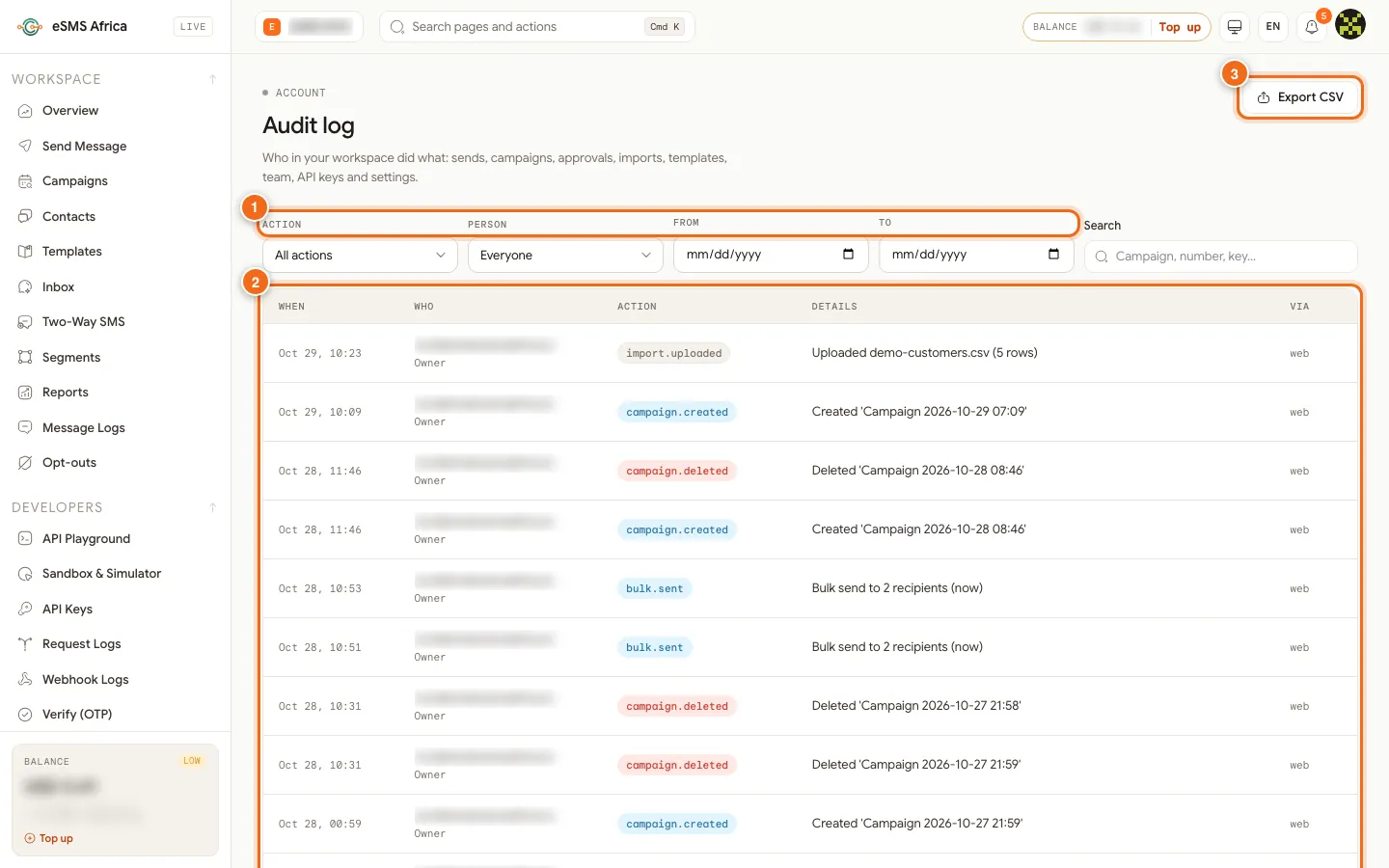
1 Filters Action, Person, From, To and Search, 2 table (When, Who, Action, Details, Via), 3 Export CSV. Filter the list
Use Action to show one kind of activity: All actions, Campaigns, Messages sent, Bulk sends, Imports, Contacts and groups, Templates, Team, API keys or Settings. Use Person to show one team member (or Everyone), From and To for a date range, and Search for a campaign name, number or key name.
Read each row
When is the date and time. Who is the person and their role, or System for automatic events such as a campaign finishing. Action is a short code such as
campaign.launched,bulk.sent,import.uploadedorapi_key.revoked. Details is a plain sentence, for example "Launched 'Fee reminders' to 1,200 recipients (sending)". Via shows whether it was done on the web, through an integration (api) or by the system.Open an entry
Click a row to open its details: who, via, the target (for example the campaign number), details and the IP address it came from.
Export a copy
Click Export CSV. The export follows the filters you have set, so filter first if you only need, for example, last month's campaign approvals.
When the audit log helps
Teams use the audit log to answer everyday questions without guessing: who sent the message a customer is asking about, who launched a campaign to the wrong group, when an API key was created or revoked, or who changed the messaging settings. Because each entry keeps the person, their role at the time, the route (web, api or system) and the IP address, it also gives auditors and managers a trail for maker-checker sign-off. Pair it with campaign approvals, so the log shows both who submitted and who approved each campaign.
Common errors and how to fix them
| What you see | What it means | How to fix it |
|---|---|---|
| "Only the owner or an admin can see the audit log" | Your role is Sender, Approver or Viewer. | Ask the Owner or an Admin for an export, or for a role change. |
| "Nothing recorded yet" | No activity matches, or the workspace is new. | Clear the filters (All actions, Everyone, empty dates). |
| "Could not load the audit log" | A temporary loading problem. | Click Retry or reload the page. |
| "Export failed" | The download could not be prepared. | Try again, or narrow the date range first. |
Frequently asked questions
Who can see the audit log?
Only the workspace Owner and Admins. Other roles see a message asking them to contact the owner or an admin.
Does the audit log show campaign approvals?
Yes. It covers sends, campaigns, approvals, imports, templates, team changes, API keys and settings.
What does System mean in the Who column?
System entries are automatic events that no person triggered, such as a campaign finishing with its sent, failed and skipped counts.
Can I see actions done through our integration?
Yes. The Via column shows api for actions done through an integration with an API key, web for the dashboard and system for automatic events.
Where is my sign-in history?
Your own sign-in history is part of the data download under Download your data on the Security tab of auth.esmsafrica.io/profile.
Related guides
Ready? Create a free eSMS account and keep a full record of your team's messaging from day one.