SMS campaign approval makes a second person sign off before a campaign sends, a maker-checker control that banks, schools and large teams often need. The Owner or an Admin turns it on in Settings, Messaging; from then on campaigns are submitted for approval, and nobody can approve a campaign they submitted themselves.
Last reviewed: 29 October 2026
How to set up SMS campaign approval
Turn on approval
Go to Settings, Messaging. Under Campaign approval ("Maker-checker: a second person signs off before a campaign sends"), tick Require approval for campaigns (2).
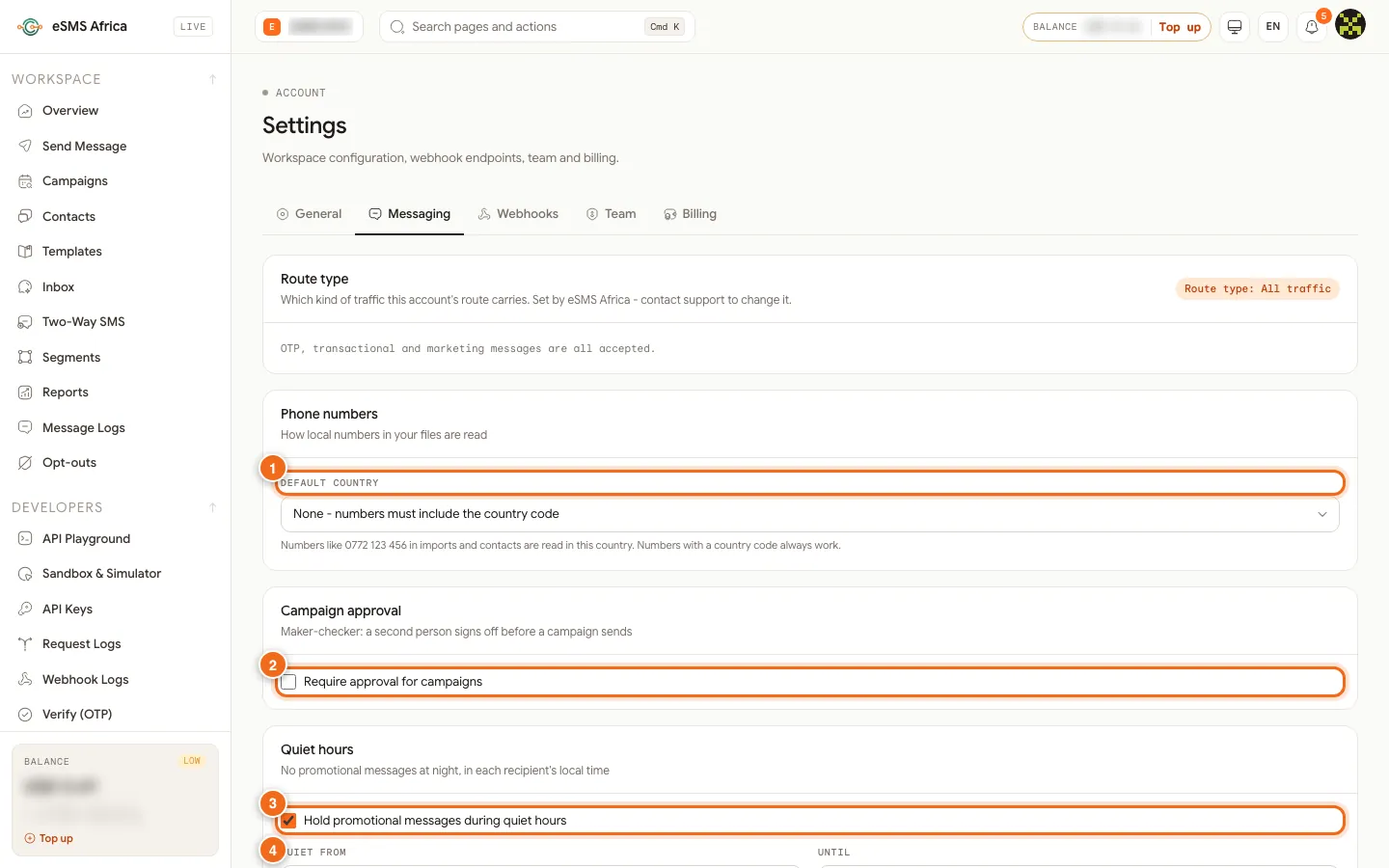
1 Default country, 2 Require approval for campaigns, 3 Quiet hours, 4 Opt-out line. Set thresholds if you want them
Optionally fill in When it has at least this many recipients and Or when it costs at least (wallet currency). Campaigns above either threshold need approval. With no threshold, every campaign needs approval. Click Save messaging settings.
Invite an approver
On Settings, Team, use Invite member with the role Approver: read-only, plus approve or reject campaigns that need sign-off.
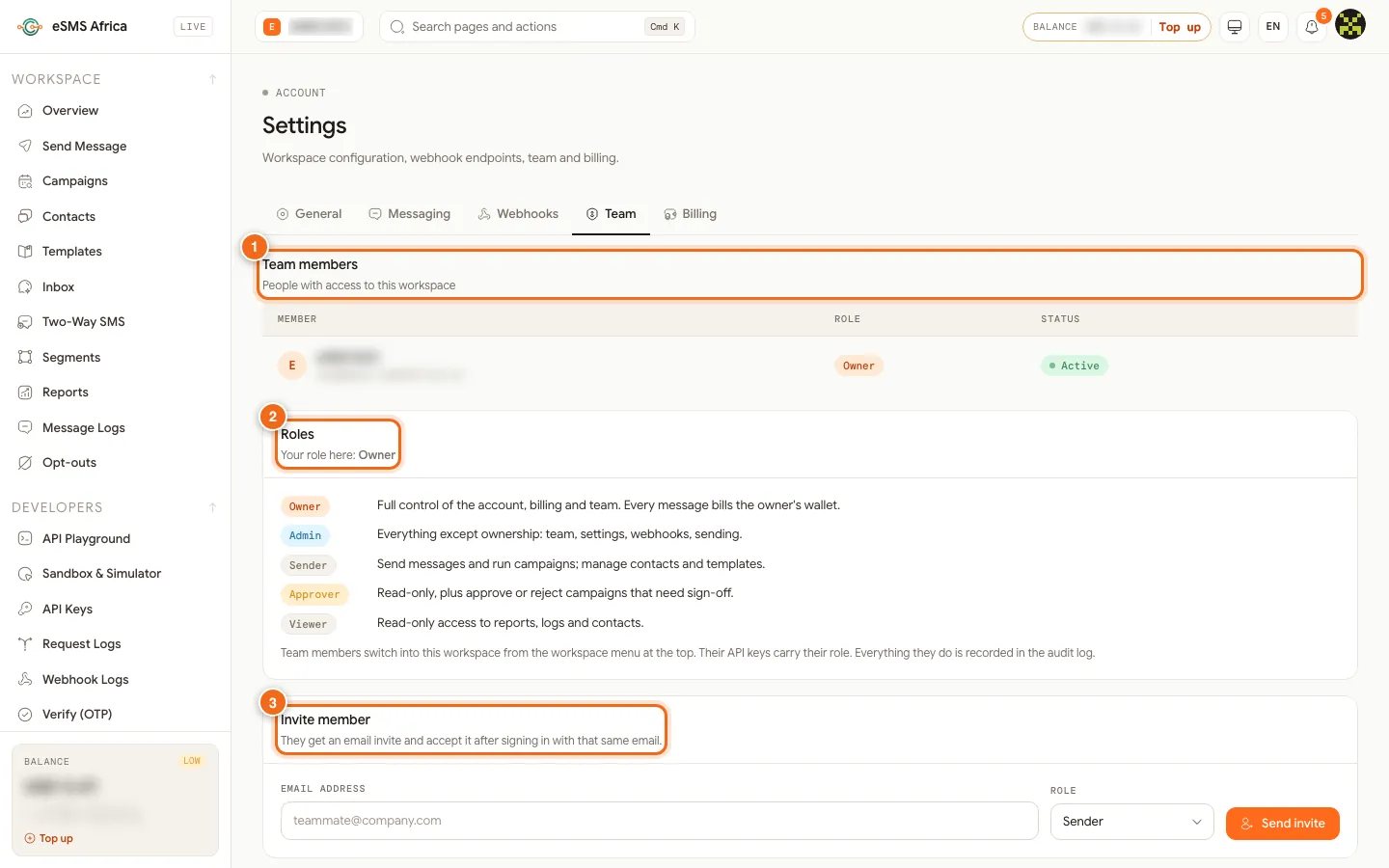
1 Team members, 2 Roles explained, 3 Invite member. Submit a campaign (maker)
Build the campaign as usual. On Review & send the main button reads Submit for approval. Confirm: an approver must approve it before anything is sent. It moves to the Needs approval tab with the banner Waiting for approval.
Approve or reject (checker)
The approver opens the campaign from Needs approval, checks the recipients and estimated cost, and clicks Approve ("Approve and send?") or Reject with a note. Rejected campaigns go back to draft with the note shown to the maker.
Fix and resubmit
If rejected, the maker reads the Rejected note, edits the draft and submits again.
What each role can do
The Owner has full control of the account, billing and team, and every message bills the owner's wallet. An Admin can do everything except ownership, including settings and the team. A Sender sends messages, runs campaigns and manages contacts and templates, so in an approval setup the Sender is usually the maker. An Approver is read-only, plus approve or reject. A Viewer has read-only access to reports, logs and contacts. Team members switch into your workspace from the workspace menu at the top, and everything they do is recorded in the audit log.
Common errors and how to fix them
| What you see | What it means | How to fix it |
|---|---|---|
| Another approver must approve it. | You submitted this campaign, and nobody can approve their own. | Ask another Approver, Admin or the Owner. |
| No Approve button | Your role cannot approve (Sender or Viewer). | Ask the Owner or an Admin to give you the Approver role. |
| Settings options greyed out | Only the Owner and Admins can change messaging settings. | Ask the Owner or an Admin. |
| Rejected (with a note) | The approver sent it back. | Read the note, edit the draft and submit again. |
| Paused: balance too low after approval | insufficient_balance while sending. | Top up and press Resume. |
Frequently asked questions
Who can approve campaigns?
Approvers, Admins and the Owner, but never a campaign they submitted themselves.
Does approval apply to single messages?
Approval applies to campaigns. Single messages from Send Message are not held for approval.
Can I require approval only for big sends?
Yes. Set a recipient threshold, a cost threshold, or both. Campaigns above either need approval.
Is anything charged while a campaign waits for approval?
No. Nothing is sent or charged until it is approved.
Related guides
Ready? Create a free eSMS account and add a second pair of eyes to every campaign.