Two-factor authentication (2FA) adds a 6-digit code from an authenticator app on your phone to every sign-in, so a stolen password alone cannot open your eSMS account. Turn it on at auth.esmsafrica.io/profile on the Security tab with Set up two-factor; the same tab lists your signed-in devices and lets you download your data or delete your account.
Last reviewed: 29 October 2026
How to turn on two-factor authentication
Open your profile
Go to auth.esmsafrica.io/profile and sign in. You see three tabs: Profile, Payments and Security. Click Security.
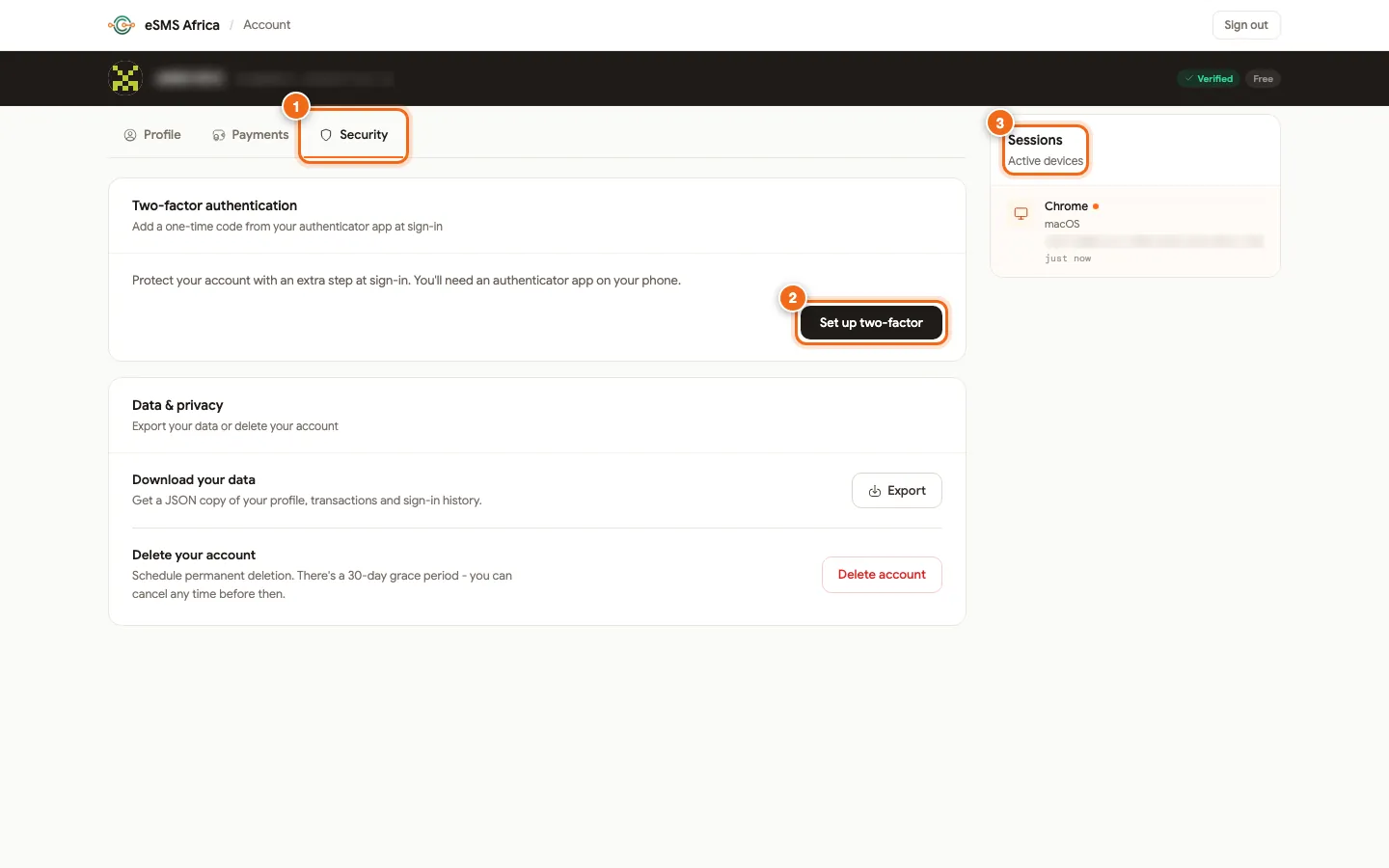
1 Security tab, 2 Set up two-factor, 3 Sessions / Active devices. Start the setup
Under Two-factor authentication, click Set up two-factor. A QR code and a setup key appear.
Scan the QR code
In your authenticator app, add an account and scan the QR code. If you cannot scan, choose manual entry in the app and type the key shown; click the key to copy it.
Enter the code and confirm
Type the 6-digit code the app shows and click Turn on two-factor. You see "Two-factor authentication is on." From now on, after your password you are asked for an Authentication code; enter it and click Verify & sign in.
Change your password
On the Profile tab, find Change password. Enter your Current password, a New password of at least 8 characters and the same again in Confirm, then click Update password. You stay signed in after changing it. If you have forgotten it, use Forgot? on the sign-in page.
Check signed-in devices
The Sessions card (Active devices) lists each browser and device signed in to your account, with how recently it was used. Revoke any device you do not recognise, or click Revoke others to sign out everywhere except where you are now. Then change your password.
Download your data or delete your account
Under Data & privacy, Download your data > Export gives you a file with a copy of your profile, transactions and sign-in history. Delete account asks for your password and an optional reason, then Schedule deletion: your account is deleted permanently after a 30-day grace period. Until then a Cancel deletion button appears on the same tab.
Common errors and how to fix them
| What you see | What it means | How to fix it |
|---|---|---|
| "That code is incorrect" | The code expired or the phone clock is wrong. | Wait for a new code. Set your phone's date and time to automatic and try again. |
| "Passwords do not match" | New password and Confirm are different. | Type the same new password in both boxes. |
| Asked for an Authentication code you cannot get | Two-factor is on and the authenticator is not available. | Use the phone where you set it up, or a device where you copied the setup key into an authenticator app. There are no backup codes, so keep that app safe. |
| A device you do not recognise in Sessions | Someone may know your password. | Revoke it, click Revoke others, change your password and turn on two-factor. |
Frequently asked questions
Which authenticator apps work?
Any app that shows 6-digit time-based codes, such as Google Authenticator, Authy or 1Password.
Does eSMS send the 2FA code by SMS?
No. Two-factor for your account uses an authenticator app, not SMS.
Can I cancel an account deletion?
Yes. Deletion happens after a 30-day grace period, and you can click Cancel deletion on the Security tab at any time before then.
Does changing my password sign me out?
No. You stay signed in on the device where you changed it. Use Revoke others to sign out other devices.
Where are my payment receipts?
On the Payments tab of the same profile page, next to each completed payment.
Related guides
Ready? Create a free eSMS account and turn on two-factor authentication on day one.