SMS opt out on eSMS is automatic: when someone replies STOP, their number is added to your Opt-outs list and excluded from every send, single, bulk and campaigns. You can also suppress a number by hand, for example after a phone call, and remove it again if the person asks to hear from you.
Last reviewed: 29 October 2026
How to manage SMS opt out
Open Opt-outs
Click Opt-outs in the left menu. The page explains that numbers that texted STOP or that you suppressed are automatically excluded from every send.
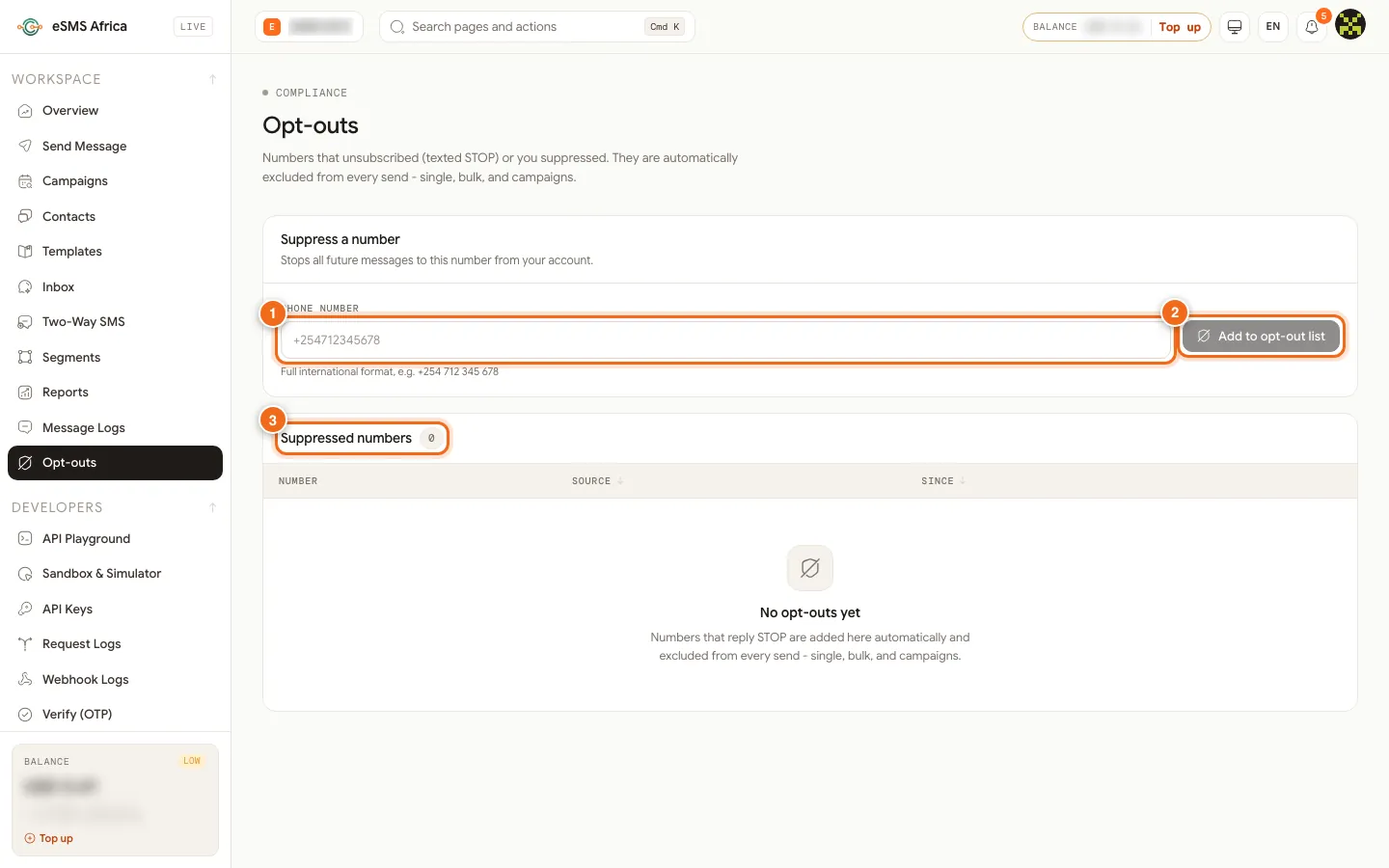
1 Phone number to suppress, 2 Add to opt-out list, 3 Suppressed numbers list. Suppress a number by hand
Under Suppress a number, type the number in Phone number (1) and click Add to opt-out list (2). This stops all future messages to that number from your account.
Review the list
Suppressed numbers (3) shows each Number, its Source (for example Replied STOP or Added manually) and Since. Use the search to find a number.
Remove a number if they opt back in
Only do this when the person has asked to receive messages again. In Actions, remove the number and confirm Remove from opt-out list?; it will be able to receive messages again.
Set your opt-out line
Go to Settings, Messaging. Under Opt-out line, set the text added to promotional messages that do not already mention STOP, for example "Reply STOP to opt out". Click Save messaging settings.
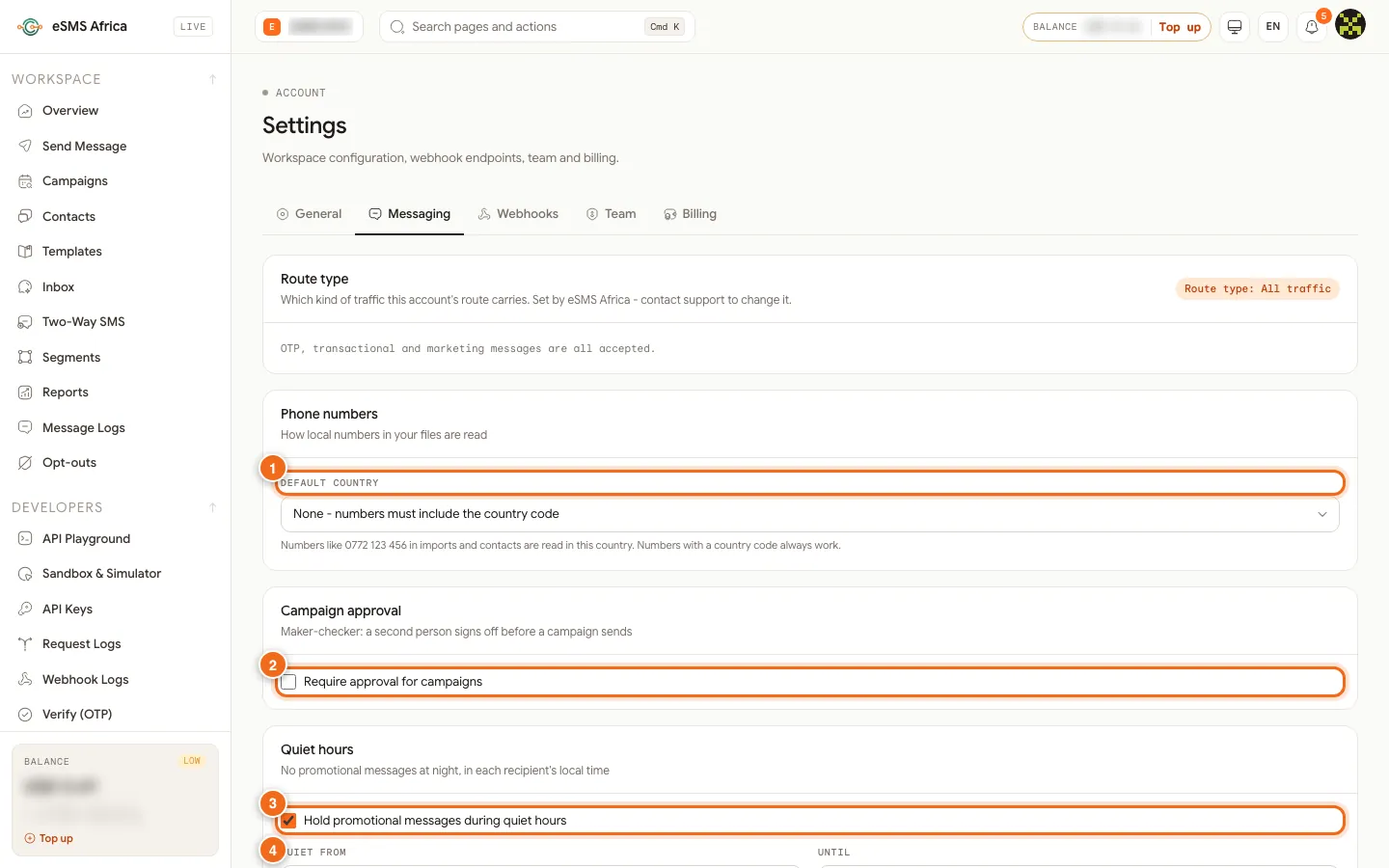
1 Default country, 2 Require approval for campaigns, 3 Hold promotional messages during quiet hours, 4 Opt-out line. Check a contact's history
On Contacts, the Opted out filter lists everyone who has opted out, and each contact shows an Opt-out history.
How STOP replies reach your list
When a recipient replies STOP to one of your messages, the number is added to your Opt-outs list with the source Replied STOP and the date. From then on, the campaign wizard counts it under opted out on the Audience step and leaves it out of the send, and single messages to it are not sent either. Opted-out numbers stay in your contact groups, so your records stay complete; only sending is blocked. The opt-out list belongs to your workspace, so it covers every teammate who sends from it.
Common errors and how to fix them
| What you see | What it means | How to fix it |
|---|---|---|
| Could not add this number. | The number is not in a valid format. | Use full international format with the country code. |
| Opted-out count on the review step | Some recipients in your list have opted out. | No action needed; they are skipped and never charged. |
| A customer still got a message after STOP | They may have used a different number, or it was sent before the reply arrived. | Search the number on Opt-outs and add it manually if missing. |
| Could not remove this number. | The change did not save. | Refresh the page and try again. |
Frequently asked questions
Do opt-outs apply to transactional messages too?
Opted-out numbers are excluded from every send from your account, including single messages, bulk sends and campaigns.
Is the opt-out line added to every message?
It is added to promotional messages that do not already mention STOP. Transactional messages such as alerts and codes do not get it.
Can I import a list of opted-out numbers?
You can add numbers one by one on the Opt-outs page. Numbers that reply STOP are added automatically.
Do I pay for messages to opted-out numbers?
No. They are removed before sending and never charged.
Related guides
Ready? Create a free eSMS account and keep your lists clean from day one.