To export SMS logs, open Message Logs, pick a status tab and click Export CSV; you get the most recent messages in that tab with their status, cost and times. For totals rather than single messages, open Reports, which shows sent, delivered, failed and spend for the last 7, 30 or 90 days by day, country, campaign and API key.
Last reviewed: 29 October 2026
How to read Reports and export SMS logs
Open Reports and choose a period
In the left menu, click Reports. Choose 7 days, 30 days or 90 days at the top.
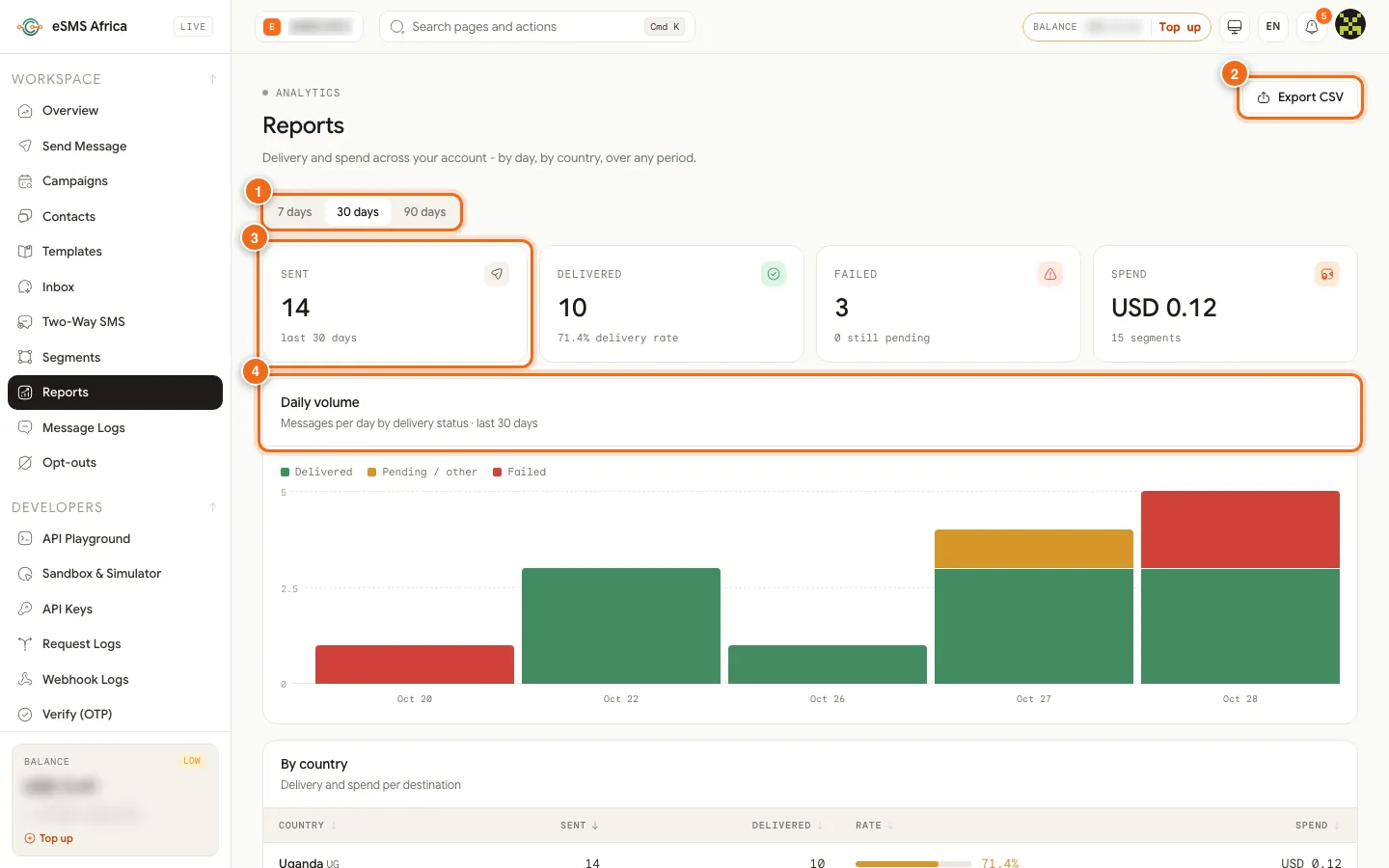
1 Period 7 days, 30 days, 90 days, 2 Export CSV, 3 Sent, Delivered, Failed and Spend cards, 4 Daily volume chart. Read the totals
Sent counts messages in the period. Delivered shows the delivery rate. Failed also tells you how many are still pending. Spend shows the amount and the number of segments billed. The Daily volume chart splits each day into Delivered, Pending / other and Failed.
Break the numbers down
Below the chart, By country shows sent, delivered, rate and spend for each destination. Spend by campaign lists each campaign, with single sends grouped as "Ad-hoc (no campaign)". Spend by API key shows which integration sent what; messages sent from the dashboard appear as "Portal (no key)".
Export the report
Click Export CSV on the Reports page to download the country table for the selected period: country, code, sent, delivered, delivery rate and cost. It opens in Excel or Google Sheets.
Find single messages in Message Logs
Click Message Logs. Use the tabs All, Delivered, Submitted, Scheduled, Dripping, Confirming and Failed. Click a row to see the full delivery timeline. Refresh reloads the list; statuses also update live while the page is open.
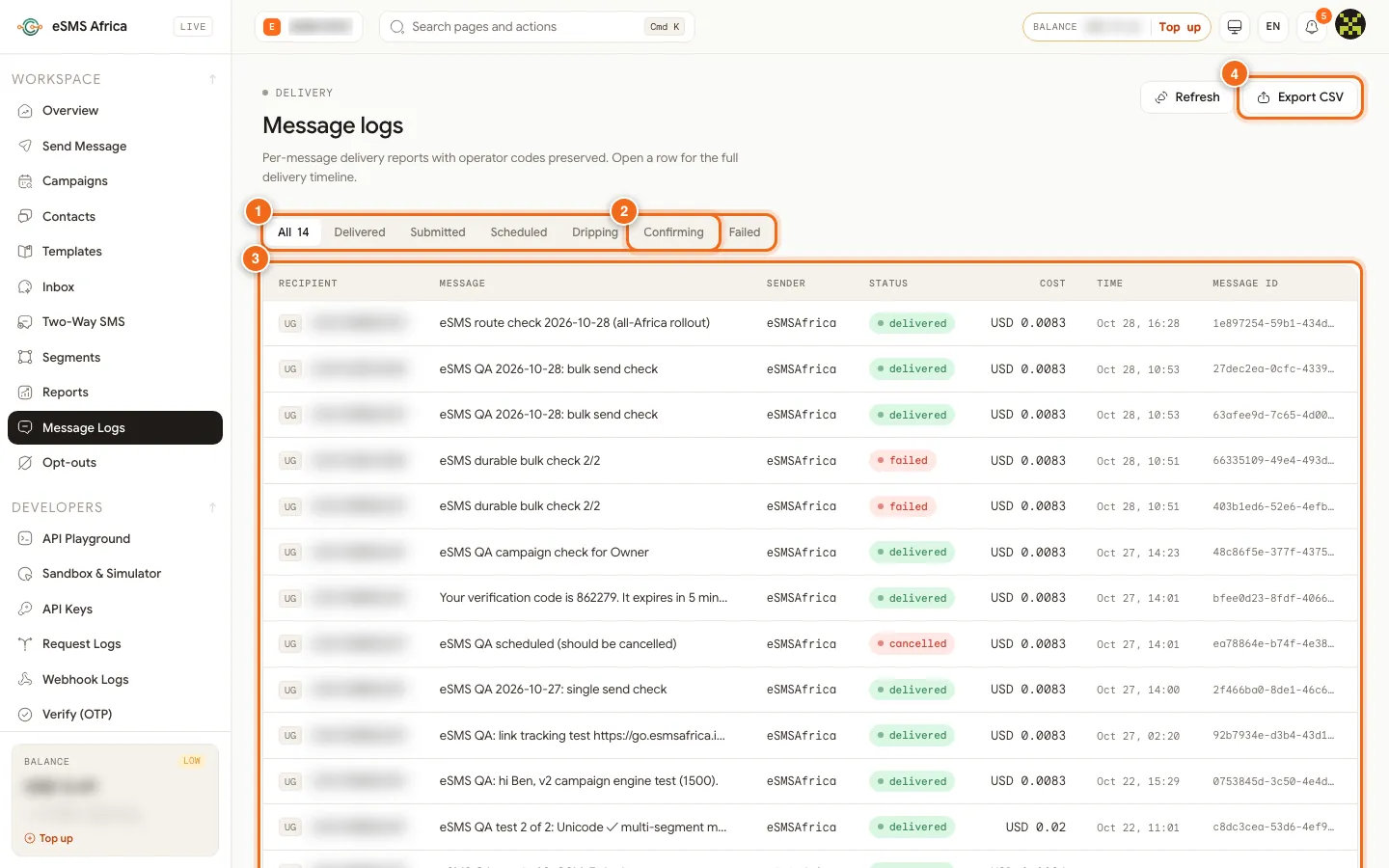
1 Status tabs, 2 Confirming tab, 3 messages table, 4 Export CSV. Export SMS logs to CSV
With the tab you want selected, click Export CSV. The file holds up to the 10,000 most recent messages in that tab, with message ID, phone, sender, text, status, country, currency, cost, segments, created and delivered times. Messages still being confirmed show as "confirming".
Common errors and how to fix them
| What you see | What it means | How to fix it |
|---|---|---|
| "No messages in this period" | Nothing was sent in the selected range. | Choose a longer period, such as 90 days. |
| "No failed messages" (or another status) | Nothing matches the tab you selected. | Click Show all messages or pick another tab. |
| Older messages missing from the CSV | The Message Logs export holds the 10,000 most recent messages in the selected tab. | Export one status tab at a time, or export each campaign's recipients from its report. |
| "Couldn't load this message" | The details panel could not load, usually a short connection problem. | Click Try again. |
| Delivered rate looks low on a recent day | Delivery reports for recent messages are still arriving and count as pending. | Check again later; the Failed card shows how many are still pending. |
Frequently asked questions
Can I search Message Logs by phone number?
Message Logs filters by status. To find one person in a campaign, use the Phone or name search in the campaign report.
What does the Reports export contain?
The Reports export is the country table for the selected period: country, code, sent, delivered, delivery rate and cost.
Why are dashboard sends shown as Portal (no key)?
Spend by API key separates traffic by integration. Messages sent from the dashboard do not use an API key, so they are grouped as Portal (no key).
Do test messages appear in Reports?
Messages sent with a test key are never charged, so they add nothing to your spend.
Where do I get per-recipient results for a campaign?
Open the campaign from Campaigns and use the CSV or Excel buttons in its Recipients section.
Related guides
Ready? Create a free eSMS account and get delivery and spend reports from your very first message.