To schedule SMS in eSMS, open the Schedule step of the campaign wizard and choose Send now, Schedule (one date and time) or Repeat (daily, weekly or monthly). Under Delivery controls, Throttle drips the send out at a set number of messages per minute, and Quiet hours hold messages overnight in each recipient's local time.
Last reviewed: 29 October 2026
How to schedule SMS campaigns
Open the Schedule step
In the wizard, go to step 3, When should it send?. Three cards are shown: Send now (1, right after you launch), Schedule (2, one date and time) and Repeat (3, daily, weekly, monthly).
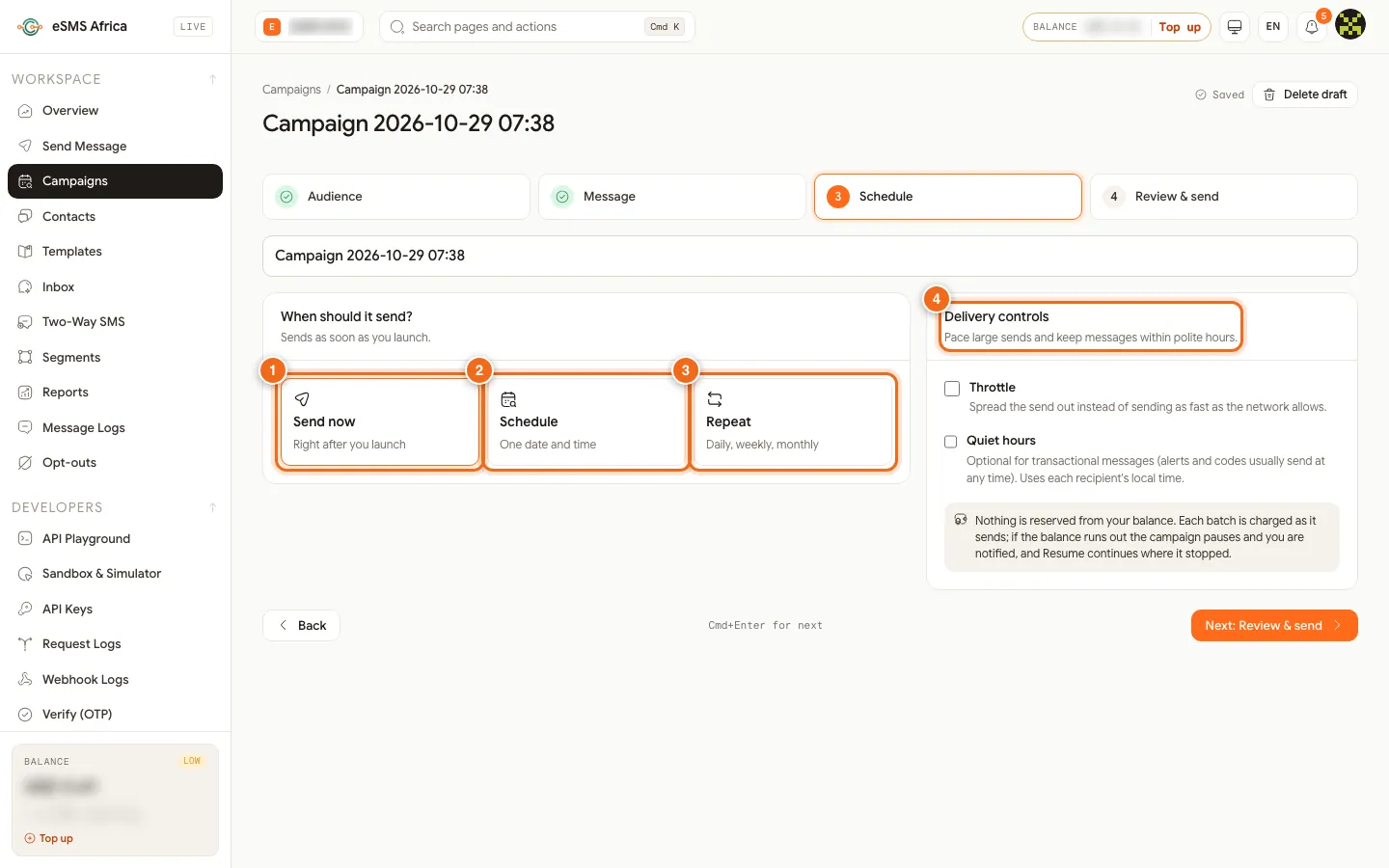
1 Send now, 2 Schedule, 3 Repeat, 4 Delivery controls. Pick a date and time
For a one-off send later, click Schedule and set the date, Time and Timezone. A line confirms when it will send.
Or set it to repeat
Click Repeat and set when it starts. Under Repeats, choose Every day, Every week or Every month (monthly lets you pick the day of the month, including Last day). Under Ends, choose Never or After a number of runs. Each run re-reads the audience, so new contacts are included and opt-outs are left out, and each run gets its own report under the campaign.
Drip the send with Throttle
In Delivery controls, tick Throttle (1), "Spread the send out instead of sending as fast as the network allows", and enter the messages per minute. This is drip sending: useful when replies or calls would otherwise all arrive at once. While it runs, its messages show as Dripping in Message logs.
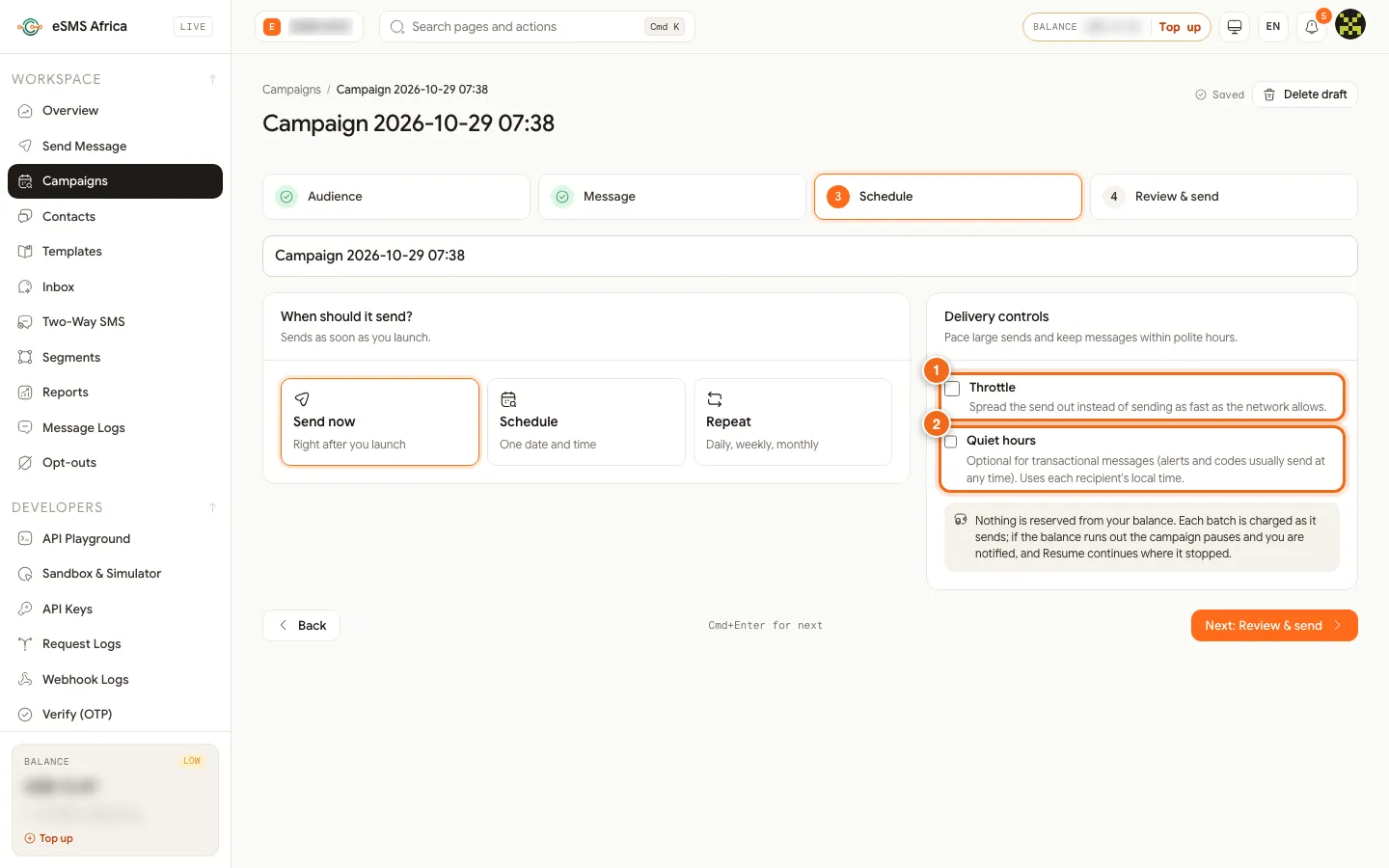
1 Throttle (messages per minute), 2 Quiet hours. Set quiet hours
Tick Quiet hours (2) and set No messages between a start and end time. Messages due inside the window wait and go out when it ends. Quiet hours are on by default for promotional messages and optional for transactional ones.
Review and launch
Click Next: Review & send. The button reads Schedule for your date, or Start repeating. Confirm; nothing is charged until it sends. The campaign appears under the Scheduled tab.
Common errors and how to fix them
| What you see | What it means | How to fix it |
|---|---|---|
| Pick a date and time. | Schedule is chosen but no time is set. | Set the date, time and timezone. |
| Choose how often it repeats. | Repeat is chosen without a frequency. | Pick Every day, Every week or Every month. |
| Check the schedule values. | A value is not valid, often a time in the past. | Choose a time in the future. |
| Paused: balance too low | insufficient_balance while sending. | Top up and press Resume; it continues where it stopped. |
| Messages held until morning | Quiet hours are on for a promotional campaign. | This is expected. Use Transactional only for real alerts and reminders. |
Frequently asked questions
Can I cancel a scheduled campaign?
Yes. Open it and click Cancel. Nothing is charged for messages that were not sent.
Which timezone do quiet hours use?
Each recipient's local time, so a campaign to several countries respects each one's night.
Does a repeating campaign pick up new contacts?
Yes. Each run re-reads the audience, adding new contacts in your groups and leaving out opt-outs.
What does Dripping mean in Message logs?
The message belongs to a throttled send and is waiting its turn to go out.
Can I pause a scheduled campaign?
Yes. Pause is available while a campaign is scheduled or sending, and Resume continues it.
Related guides
Ready? Create a free eSMS account and schedule your next campaign.