SMS audience segmentation lets you send to just the right people. On the Segments page you build a reusable audience with rules, for example "tag is vip" or "city is Kampala", from your contact lists. Each time you use the segment in a campaign, it picks up the contacts that match at that moment.
Last reviewed: 29 October 2026
How to set up SMS audience segmentation
Open Segments
Click Segments in the left menu, then New segment. The editor says "Define your audience".
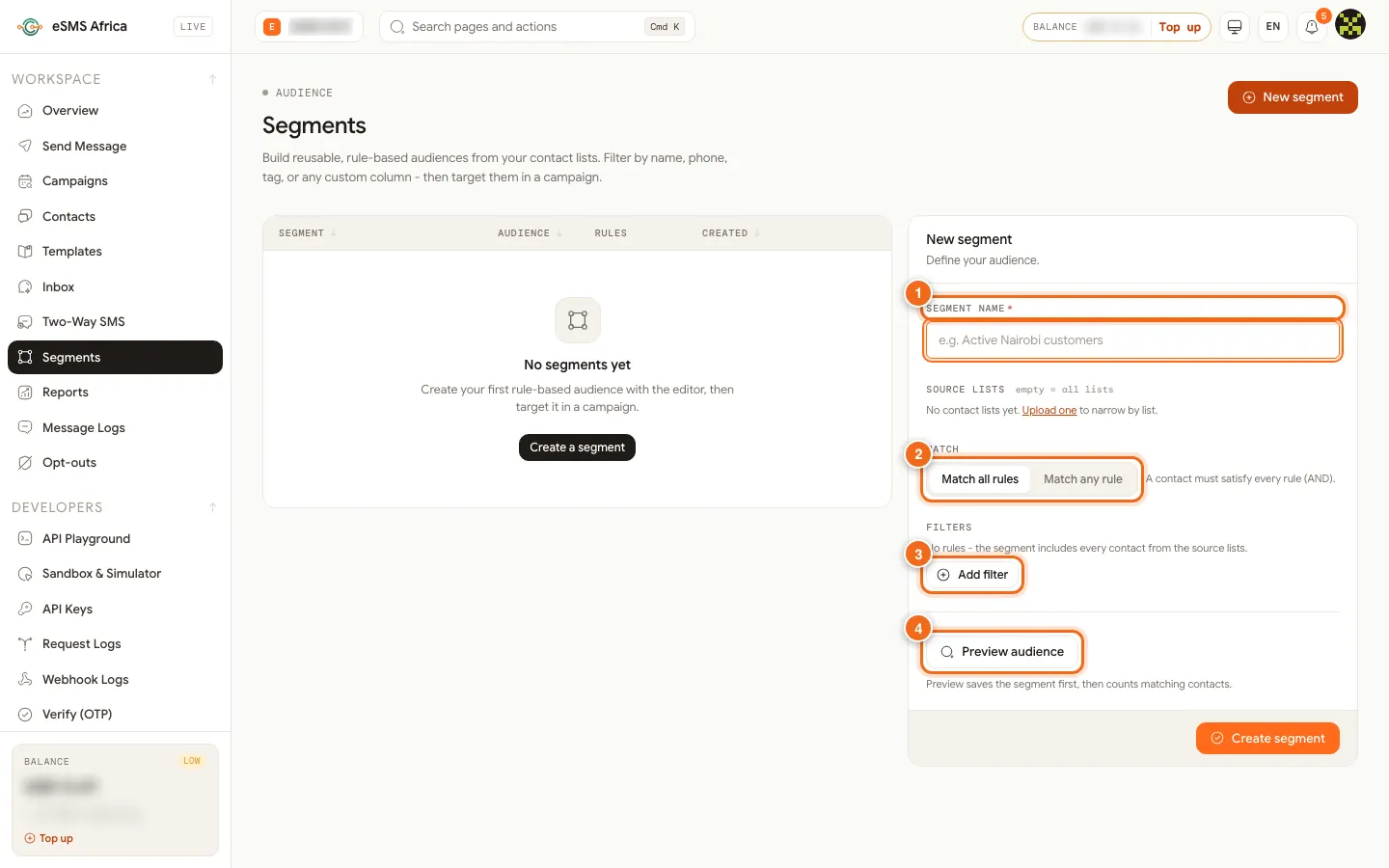
1 Segment name, 2 Match all rules or Match any rule, 3 Add filter, 4 Preview audience. Name the segment
Type a clear Segment name (1), for example "Active Nairobi customers". Under Source lists, pick lists to search, or leave it empty to search all lists.
Choose how rules combine
Pick Match all rules (a contact must satisfy every rule) or Match any rule (a contact matching any rule is included) (2).
Add filters
Click Add filter (3). Choose a field: Name, Phone, Tag, List or Custom field... (then type the column name). Choose a condition: is, is not, contains, starts with, is one of, exists or does not exist, and type the value. With no rules, the segment includes every contact from the source lists.
Preview the audience
Click Preview audience (4). Preview saves the segment first, then counts matching contacts and shows a Sample of matching contacts.
Save and use it
Click Create segment. It appears under Saved segments with its audience count. In the campaign wizard, open the Contacts & groups tab on Audience and pick it under Segments.
Segment ideas that work
A school can keep one segment per class using a custom field such as class is P5, and send fee reminders only to that class. A shop can target customers whose tag is vip, or whose city contains Kampala, for a local offer. A lender can send repayment reminders to contacts whose due_date exists, so rows without a date are left out. Keep segment names descriptive so teammates pick the right one in the campaign wizard, and preview after every change to check the count.
Common errors and how to fix them
| What you see | What it means | How to fix it |
|---|---|---|
| Give the segment a name | The name box is empty. | Type a name, then save or preview. |
| A filter is missing its value | A rule has no value. | Type a value or remove the rule. |
| Enter a key for the custom field filter | You chose Custom field... but did not type the column name. | Type the column name exactly as it appears in your contacts. |
| No contacts match these rules. | Nothing in the source lists fits. | Loosen a rule, switch to Match any rule or check the spelling of values. |
| Failed to save segment | The segment did not save. | Check the rules and try again. |
Frequently asked questions
Does a segment update itself?
Yes. A segment is a set of rules, so it matches the contacts that fit when you use it.
Will opted-out contacts be included?
No. Opted-out numbers are removed from every send, whatever the segment says.
Can I edit a segment later?
Yes. Open it from Saved segments, change the rules and click Save changes, then preview again.
What is the difference between a group and a segment?
A group is a fixed list you import. A segment is a filter over your lists that can change as contacts change.
Related guides
Ready? Create a free eSMS account and reach the right customers with segments.