To upload contacts from Excel or CSV into eSMS, open Contacts, click Import contacts, drop your file, pick the phone column and save the numbers to a group. Numbers are checked and duplicates removed, and every column in your file becomes a merge field, such as {first_name} or {due_date}, that you can use in campaigns.
Last reviewed: 29 October 2026
How to upload contacts from Excel or CSV
Open Import contacts
Click Contacts in the left menu, then Import contacts. The dialog says "CSV, Excel or pasted numbers into a group".
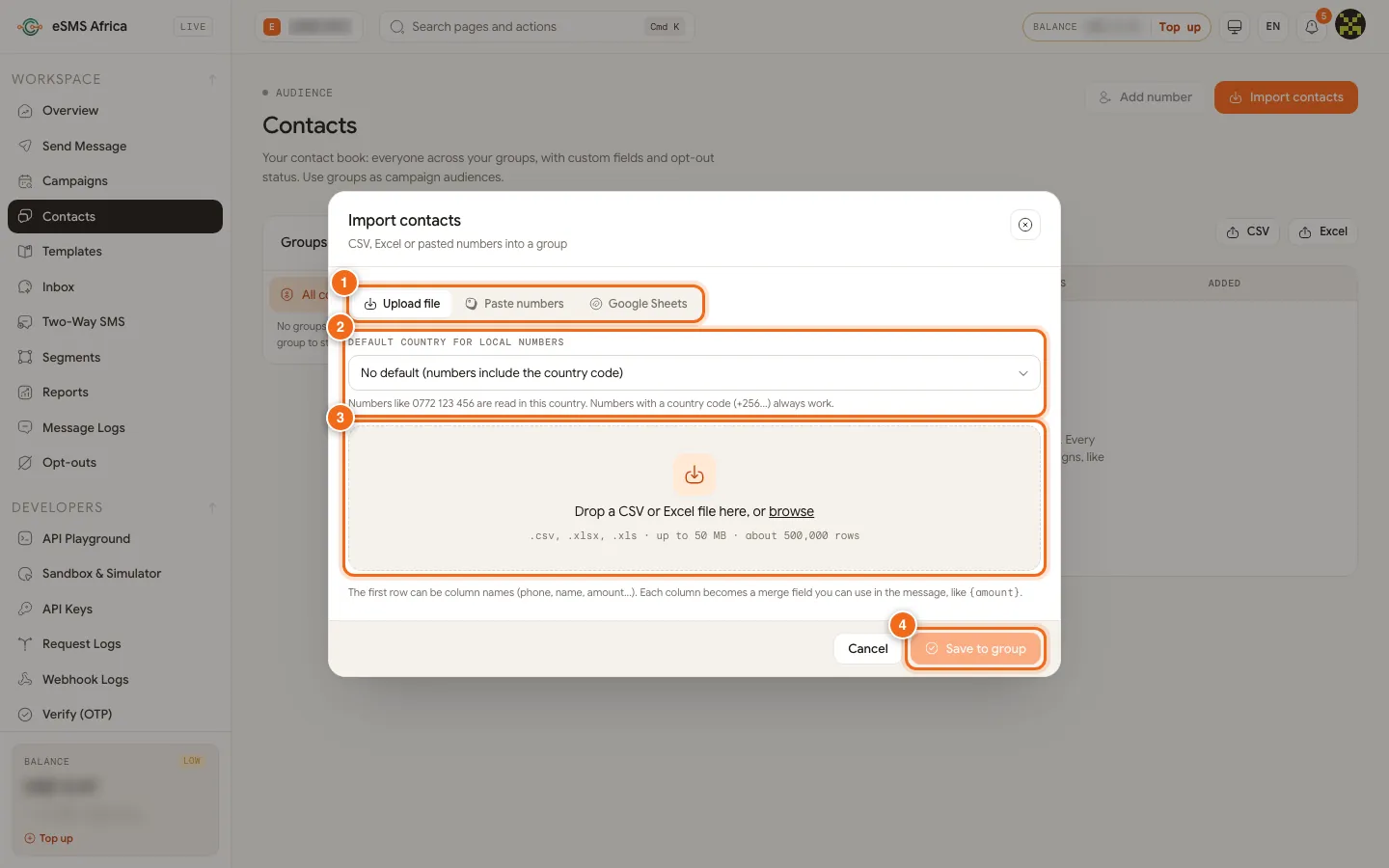
1 Upload file, Paste numbers or Google Sheets, 2 Default country for local numbers, 3 Drop a CSV or Excel file, 4 Save to group. Pick the source
Choose Upload file, Paste numbers (one per line, or separated by commas; rows copied from a spreadsheet with a header row also work) or Google Sheets (paste the sheet link; we read the first tab, or the tab in the link, once as a copy) (1).
Set the default country
Under Default country for local numbers (2), choose the country for numbers written without a country code. Numbers with a country code (+256...) always work. Leave it on "No default" if all numbers include the code.
Drop your file
Drag the file onto the drop area (3) or click browse. Large files take a minute; nothing is sent at this stage.
Match the columns
Choose the Phone number column and, if you have one, the Name column (optional). The other columns are listed under Merge fields. The first rows of the file are shown so you can check. Click Check and import.
Check the counts
You see how many numbers are valid, invalid, duplicates and opted out. If some rows failed, click Download error file (CSV) to see why, for example No country code or Excel scientific notation.
Save to a group
Choose A new group (type a name) or An existing group, then click Save to group (4). Numbers already in the group are skipped, so nobody is added twice.
After the import
Your group appears in the Groups panel on Contacts. Use the All, Subscribed and Opted out filters to check who can be messaged, and CSV or Excel to export. Click Message this group to start a campaign, or pick the group on the Audience step of the campaign wizard.
Common errors and how to fix them
| What you see | What it means | How to fix it |
|---|---|---|
| That file is larger than 50 MB. Split it or remove unused columns. | The file is over the size limit. | Delete columns you do not need or split it into two files. |
| Choose the column with the phone numbers. | No phone column is selected. | Pick it in Phone number column. |
| Excel scientific notation | The number was saved as 2.56772E+11. | Format the column as Text in Excel and export again. |
| No country code / Invalid number | The number cannot be read as a valid mobile number. | Add the country code or set the default country. |
| Duplicate / Opted out | The number appears twice or has opted out. | No action needed; these rows are skipped automatically. |
| Upload failed / Processing failed | The file could not be read. | Save it again as .csv or .xlsx and retry. |
Frequently asked questions
Which file types can I upload?
CSV (any delimiter or encoding), Excel .xlsx and .xls, pasted numbers or a Google Sheets link.
How big can my file be?
Up to 50 MB, which is about 500,000 rows.
Do I need a header row?
It is recommended. Column names become merge fields, for example a column called amount becomes {amount}.
Are duplicate numbers charged twice?
No. Duplicates are removed, and numbers already in a group are not added again.
Can I add one number by hand?
Yes. Click Add number on the Contacts page.
Related guides
Ready? Create a free eSMS account and import your first contact list.