SMS templates keep your best wording ready to reuse. On the Templates page you save messages with merge fields such as {first_name} and {amount|0}, share them with your team, and start campaigns from them in one click. A starter pack gives ready-made wording for reminders, bank alerts, codes, delivery notices and promotions.
Last reviewed: 29 October 2026
How to save and reuse SMS templates
Open Templates
Click Templates in the left menu. Use the category filters (2) to narrow the list: Reminders, Bank and transaction alerts, One-time passwords, Delivery notices, Appointment reminders, Payment due, Promotions, Event invites and Other. Your templates (3) shows each card's type, category, segments and merge fields.
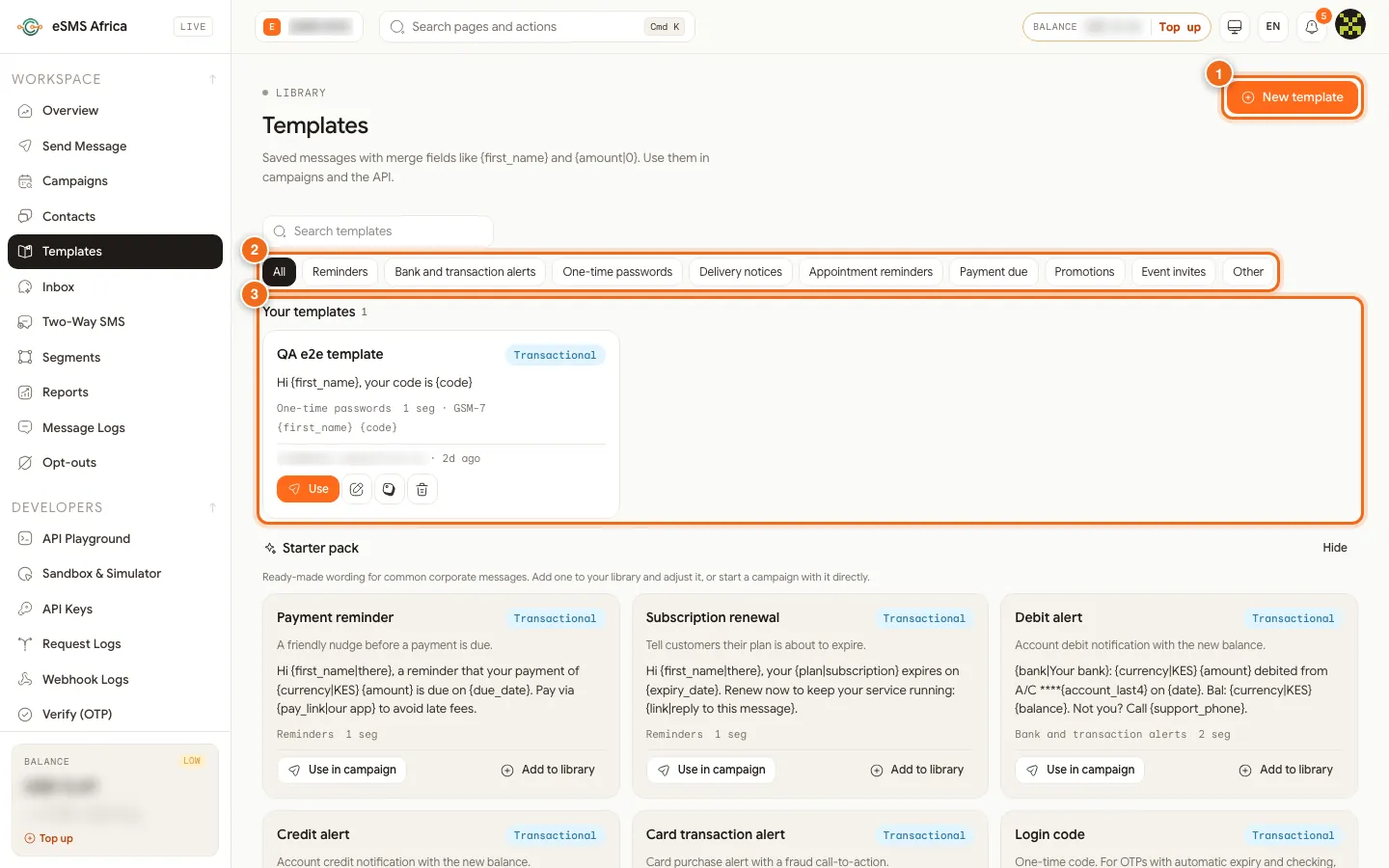
1 New template, 2 Category filters, 3 Your templates. Create a template
Click New template (1). Fill in Name and Message (merge fields like {field}, with a fallback {field|default}). Choose a Category, the Type: Transactional (alerts, reminders, OTP) or Promotional (offers, marketing), and Who can use it: Team - everyone in the workspace or Private - only me. Add a description if you like.
Check the preview and save
Preview with sample values shows the message with example data and its segment count. Real messages can be longer or shorter depending on each recipient's values. Click Save template.
Start from the starter pack
Scroll to Starter pack. Each card, for example Payment reminder (1), shows its type and segment count. Click Use in campaign (2) to start a campaign with it, or Add to library (3) to copy it into your templates and adjust it.
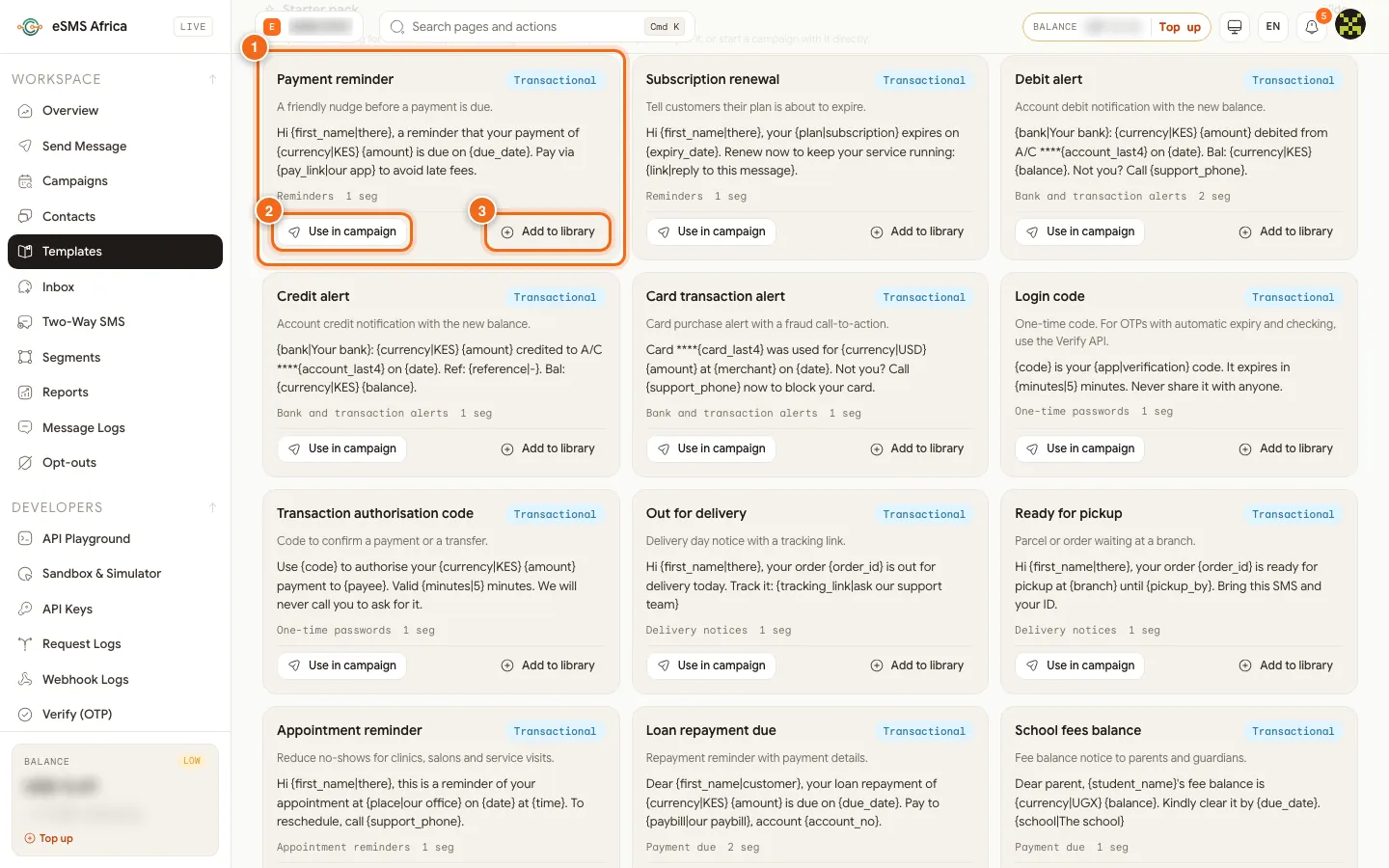
1 A starter template (Payment reminder), 2 Use in campaign, 3 Add to library. Use a template
On a template card, click Use to start a campaign with it. Inside the wizard's Message step, click Templates to open Choose a template with your templates and the starter pack.
Edit, copy or delete
The icons on each card let you Edit, Copy text or Delete. Deleting a template does not affect campaigns already sent.
Starter templates included
The starter pack covers Payment reminder, Subscription renewal, Debit alert, Credit alert, Card transaction alert, Login code, Transaction authorisation code, Out for delivery, Ready for pickup, Appointment reminder, Loan repayment due, School fees balance, Invoice overdue, Weekend sale, Loyalty points balance, Event invite and Event reminder. Each already has sensible fallbacks, such as {first_name|there} and {currency|KES}, so change the defaults to suit your country.
Common errors and how to fix them
| What you see | What it means | How to fix it |
|---|---|---|
| Give the template a name and a message. | Name or Message is empty. | Fill in both, then save. |
| Unknown merge field (in the campaign) | The template uses a field your audience does not have. | Rename the column in your file, or add a fallback such as {amount|0}. |
| Unicode label in the preview | A special character or emoji is in the text. | Replace it to keep 160 characters per segment. |
| Could not add the template | Adding from the starter pack did not save. | Refresh and click Add to library again. |
| No templates match | No template fits the category or search. | Click All, or clear the search. |
Frequently asked questions
Can my team see my templates?
Yes, if Who can use it is Team. Choose Private - only me to keep a template to yourself.
Can I use templates in a single SMS?
Templates are used in campaigns: click Use on a card, or Templates on the wizard's Message step.
Does editing a template change past campaigns?
No. Campaigns already sent are not affected.
Where do merge field names come from?
From your file's column headers, for example a column called due_date becomes {due_date}.
Related guides
Ready? Create a free eSMS account and start from a ready-made template today.