You invite team members from Settings > Team: enter their email address, pick a role and click Send invite. Each person signs in with their own eSMS account and works inside your workspace with the permissions of their role, while every message they send is billed to the owner's wallet.
Last reviewed: 29 October 2026
The five roles
| Role | What they can do |
|---|---|
| Owner | Full control of the account, billing and team. Every message bills the owner's wallet. |
| Admin | Everything except ownership: team, settings, webhooks, sending. |
| Sender | Send messages and run campaigns; manage contacts and templates. |
| Approver | Read-only, plus approve or reject campaigns that need sign-off. |
| Viewer | Read-only access to reports, logs and contacts. |
Requesting sender IDs and Two-Way SMS keywords, changing alerts, onboarding and workspace settings are kept for the Owner and Admins. A Sender cannot do these.
How to invite team members
Open the Team tab
In the left menu under ACCOUNT, click Settings, then the Team tab. The Team members table lists everyone with access, their role and status.
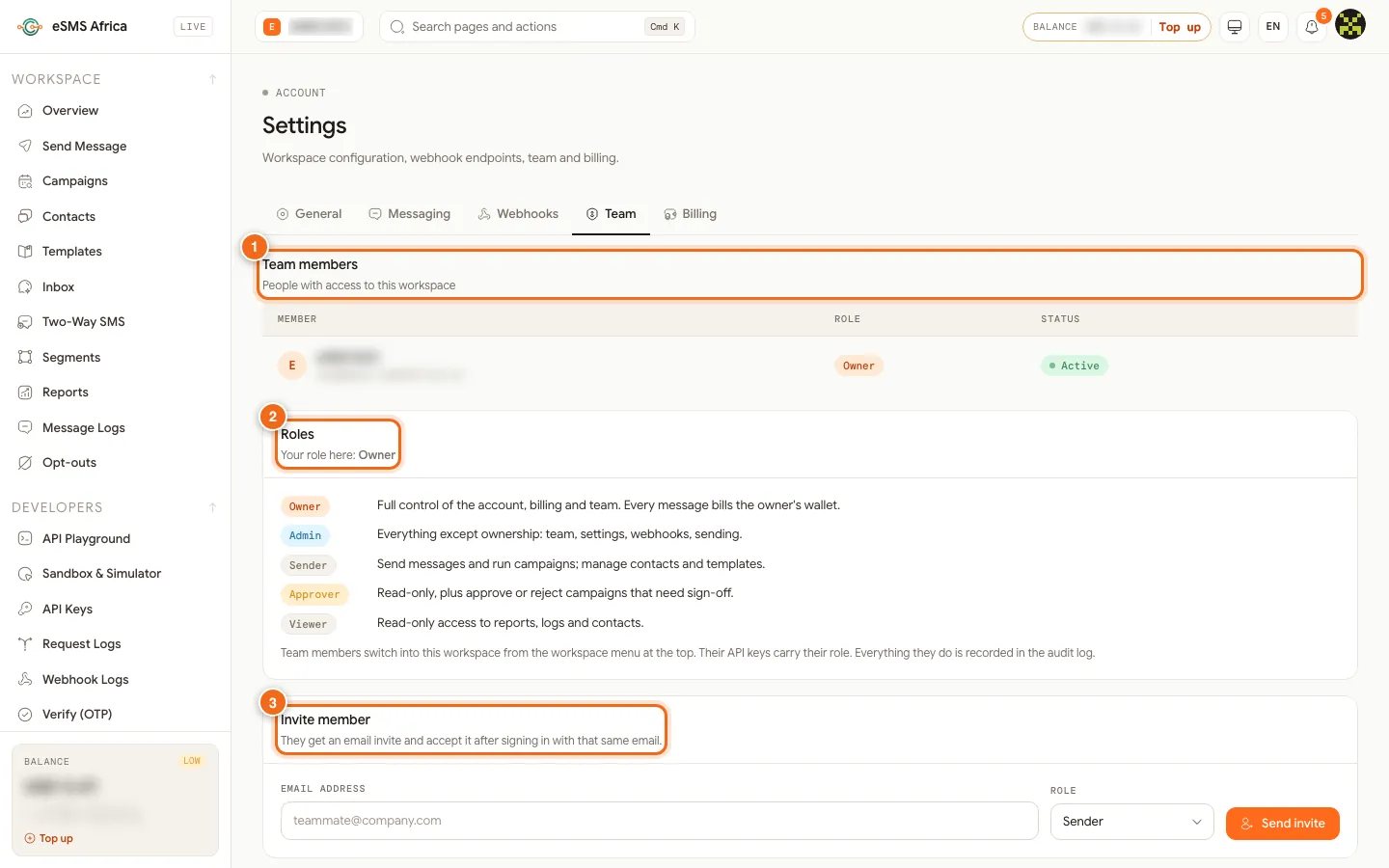
1 Team members table (member, role, status), 2 Roles explained, 3 Invite member (email address, role, Send invite). Send the invite
Under Invite member, type the Email address, choose a Role (Sender is selected by default) and click Send invite. You see "Invitation sent" and the person appears in the table as Pending.
Your colleague accepts
They get an email invite. After signing in to the dashboard with that same email, they see a "Team invitation." bar ("You're invited to ... as Sender") with Accept and Decline. The invite also waits in the workspace menu at the top of the page, under Invitations. Once accepted, their status changes to Active.
Switch into the workspace
Team members move between their own account and yours from the workspace menu at the top. It lists each workspace with the person's role, marks their own with "(yours)" and links to Manage team.
Change a role or remove someone
Owners and Admins can pick a new role from the dropdown in the member's row (you see "Role updated"), or click Remove and confirm. A removed person loses access to the workspace straight away. The Owner row cannot be changed or removed.
Common errors and how to fix them
| What you see | What it means | How to fix it |
|---|---|---|
| "Enter a valid email address" | The email is missing or mistyped. | Check the address and try again. |
| "That person has already been invited" | There is already a pending or active invite for that email. | Find them in the Team members table. Remove and re-invite if you need to start again. |
| "You are already the owner of this workspace" | You entered your own email. | Invite a colleague's email instead. |
| "Only the workspace owner or an admin can invite members" | Your role is Sender, Approver or Viewer. | Ask the Owner or an Admin to send the invite or change your role. |
| Colleague does not see the invitation | They signed in with a different email address. | They must sign in with exactly the email you invited, or you invite the email they use. |
Frequently asked questions
Does each team member need their own eSMS account?
Yes. They sign in with their own account on the invited email and switch into your workspace from the workspace menu.
Who pays for messages sent by team members?
The workspace owner. Every message sent inside the workspace bills the owner's wallet.
Can an Approver send messages?
No. Approvers have read-only access plus the right to approve or reject campaigns that need sign-off.
Can a Sender request a sender ID?
No. Sender ID and Two-Way SMS keyword requests are for the Owner and Admins.
How do I see what a team member did?
Open Audit log under ACCOUNT. It records sends, campaigns, approvals, imports, templates, team changes, API keys and settings.
Related guides
Ready? Create a free eSMS account, then invite your team from Settings > Team.