To send bulk SMS online with eSMS, open Send Message, click the Bulk & personalised tab and choose Start with a file or list. A four-step wizard takes you through Audience, Message, Schedule and Review & send, so every person gets their own name or amount and you see the exact cost first.
Last reviewed: 29 October 2026
How to send bulk SMS online
Open the Bulk & personalised tab
Go to Send Message and click Bulk & personalised (1). The page sums up the four steps: Audience, Message, Schedule and Review & send.
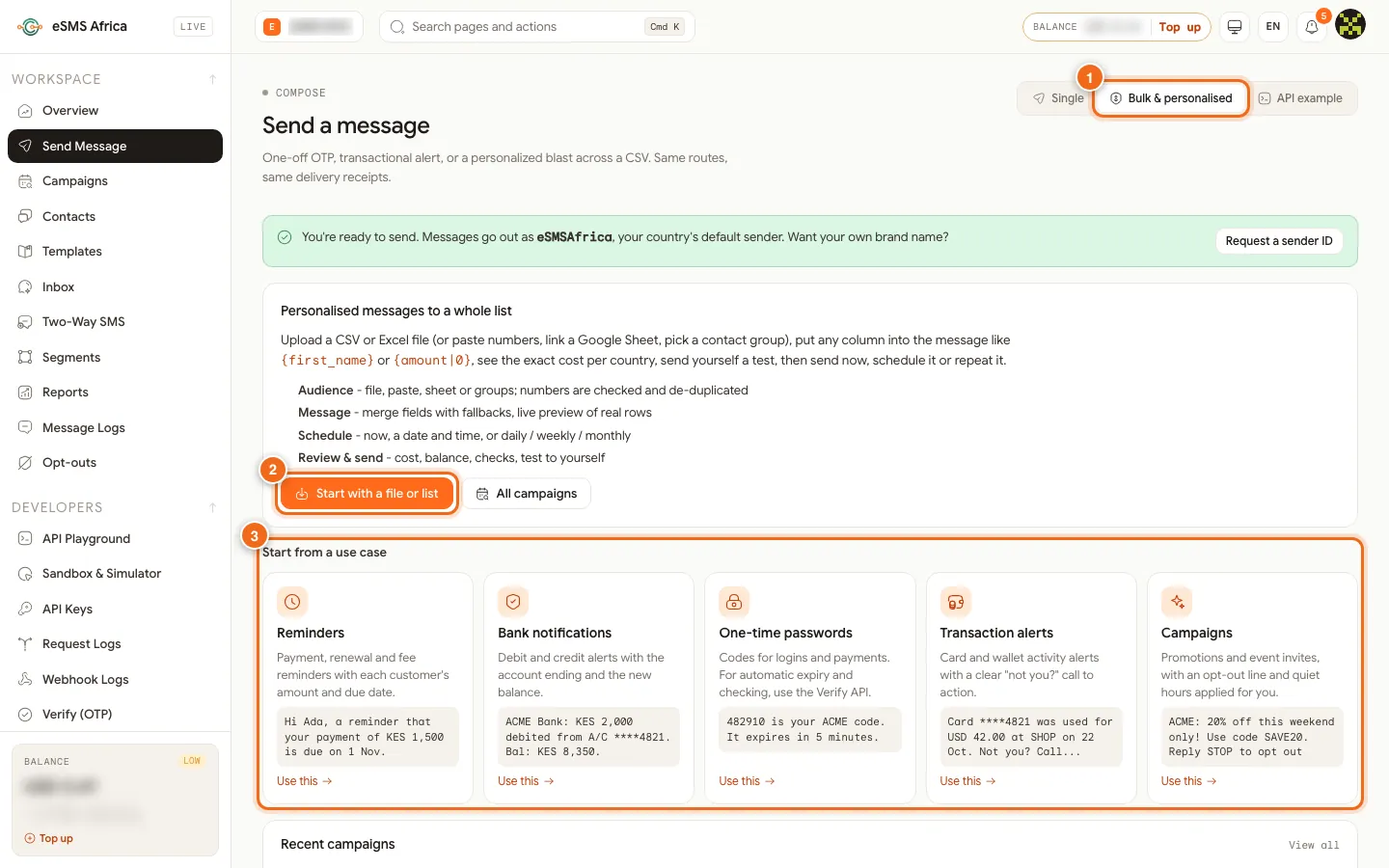
1 Bulk & personalised tab, 2 Start with a file or list, 3 Start from a use case. Start with a file or a use case
Click Start with a file or list (2) for a blank campaign, or pick a card under Start from a use case (3): Reminders, Bank notifications, One-time passwords, Transaction alerts or Campaigns, then click Use this to start with ready wording.
Add your audience
On Audience, upload your file, paste numbers, link a Google Sheet, or pick contact groups and segments. Click Check and import. Duplicates and opted-out numbers are removed automatically.
Write and personalise the message
On Message, type your text and click the merge-field chips, such as {first_name} or {amount}, to insert them. The preview pages through real rows from your list.
Choose when to send
On Schedule, choose Send now, Schedule or Repeat, and set delivery controls if needed.
Review, test and send
On Review & send, check the recipients, estimated cost and balance after. Click Send test to me, then Send to N recipients. Recent campaigns appear at the bottom of the Bulk tab; All campaigns opens the full list.
Which use case to pick
Reminders suit payment, renewal and fee reminders with each customer's amount and due date. Bank notifications and Transaction alerts cover debit, credit and card activity. One-time passwords is for login and payment codes. Campaigns is for promotions and event invites, with an opt-out line and quiet hours applied for you. Developers who want to send bulk messages from their own systems can follow the bulk SMS guide in the docs.
Common errors and how to fix them
| What you see | What it means | How to fix it |
|---|---|---|
| Nothing selected yet. Upload a file, paste numbers or pick a group. | The audience is empty. | Add a source and click Check and import. |
| Unknown merge field | A {field} in the message is not a column in your audience. | Pick a field from the chips or add a fallback like {field|...}. |
| Not sent (never charged): ... country not available yet / invalid number | Some rows will be skipped on the review step and are not charged. | Fix the numbers in your file, or switch on the country if it is live. |
| country_not_enabled | A destination country is not switched on. Nothing was charged. | Open Countries, click Enable on that country and try again. |
| Paused: balance too low | Your balance ran out during the send (insufficient_balance). | Top up, then press Resume. |
| Fix before sending | The review step found problems. | Click Fix next to each problem to go to the step that needs a change. |
Frequently asked questions
How many numbers can I send to at once?
A file can hold up to 50 MB, about 500,000 rows, and you can combine several files, groups and typed numbers in one campaign.
Can I send the same text to everyone?
Yes. Leave out merge fields and everyone gets the same message.
Will people who replied STOP get the message?
No. Opted-out numbers are excluded from every send automatically.
Can I send later instead of now?
Yes. Choose Schedule for a date and time, or Repeat for daily, weekly or monthly sends.
Related guides
Ready? Create a free eSMS account and send your first bulk campaign today.