The eSMS SMS campaign wizard builds a campaign in four steps. Click New campaign on the Campaigns page and work through Audience, Message, Schedule and Review & send. Your draft saves as you go, the review step shows the exact cost per country and your balance after, and you can send yourself a test before anyone else gets it.
Last reviewed: 29 October 2026
How to create an SMS campaign with the wizard
Start a new campaign
Click Campaigns in the left menu, then New campaign (1). The tabs (2) filter campaigns by status: All, Drafts, Needs approval, Scheduled, Sending, Completed and Cancelled.
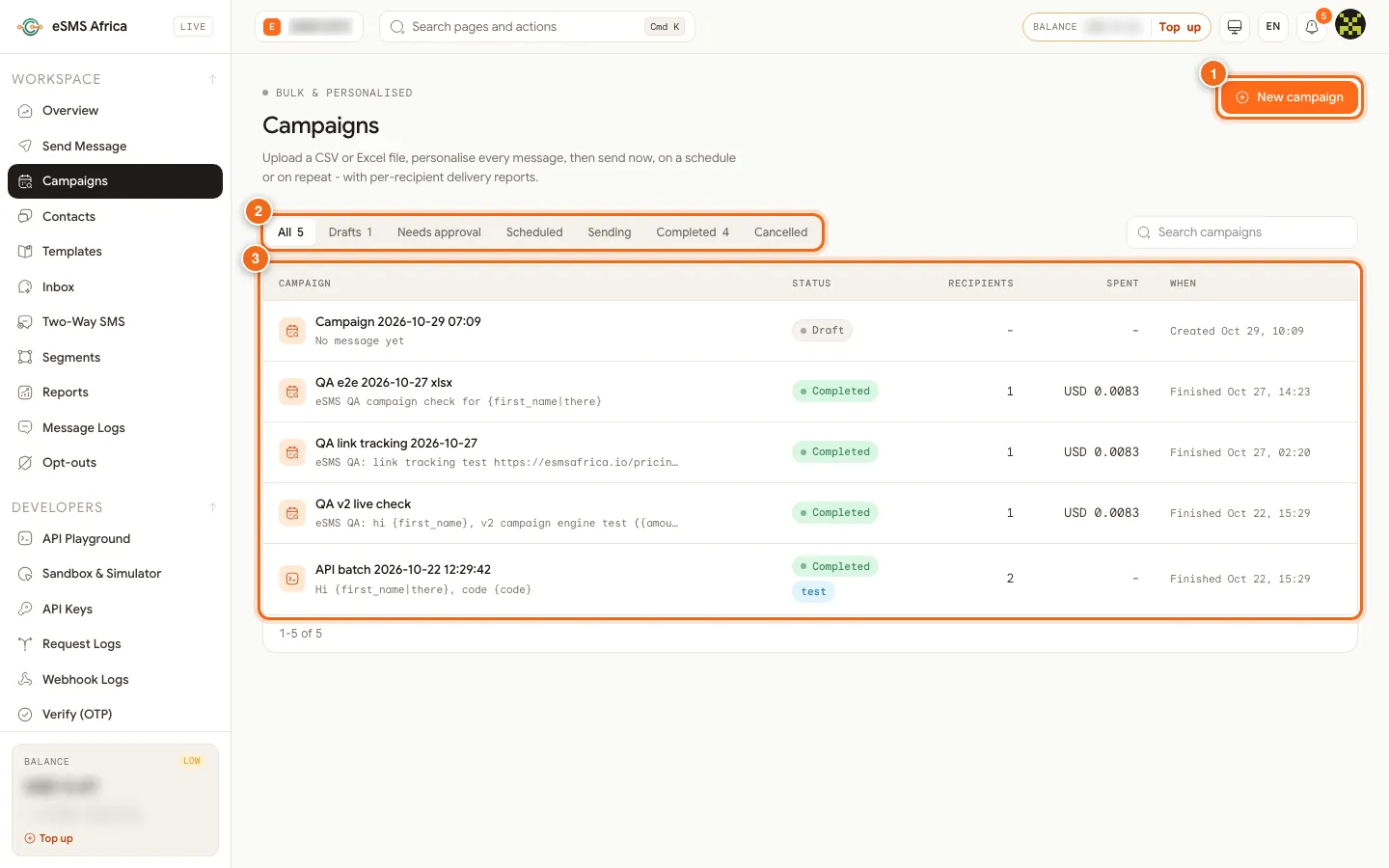
1 New campaign, 2 Status tabs, 3 Campaigns table with status, recipients, spent and when. Name it and add the audience
Give the campaign a name at the top. On Audience, choose File, paste or sheet, Contacts & groups or Type numbers, then click Check and import. The Selected audience panel (2) shows valid numbers, and the counts show invalid, duplicates and opted out. Click Next: Message (3).
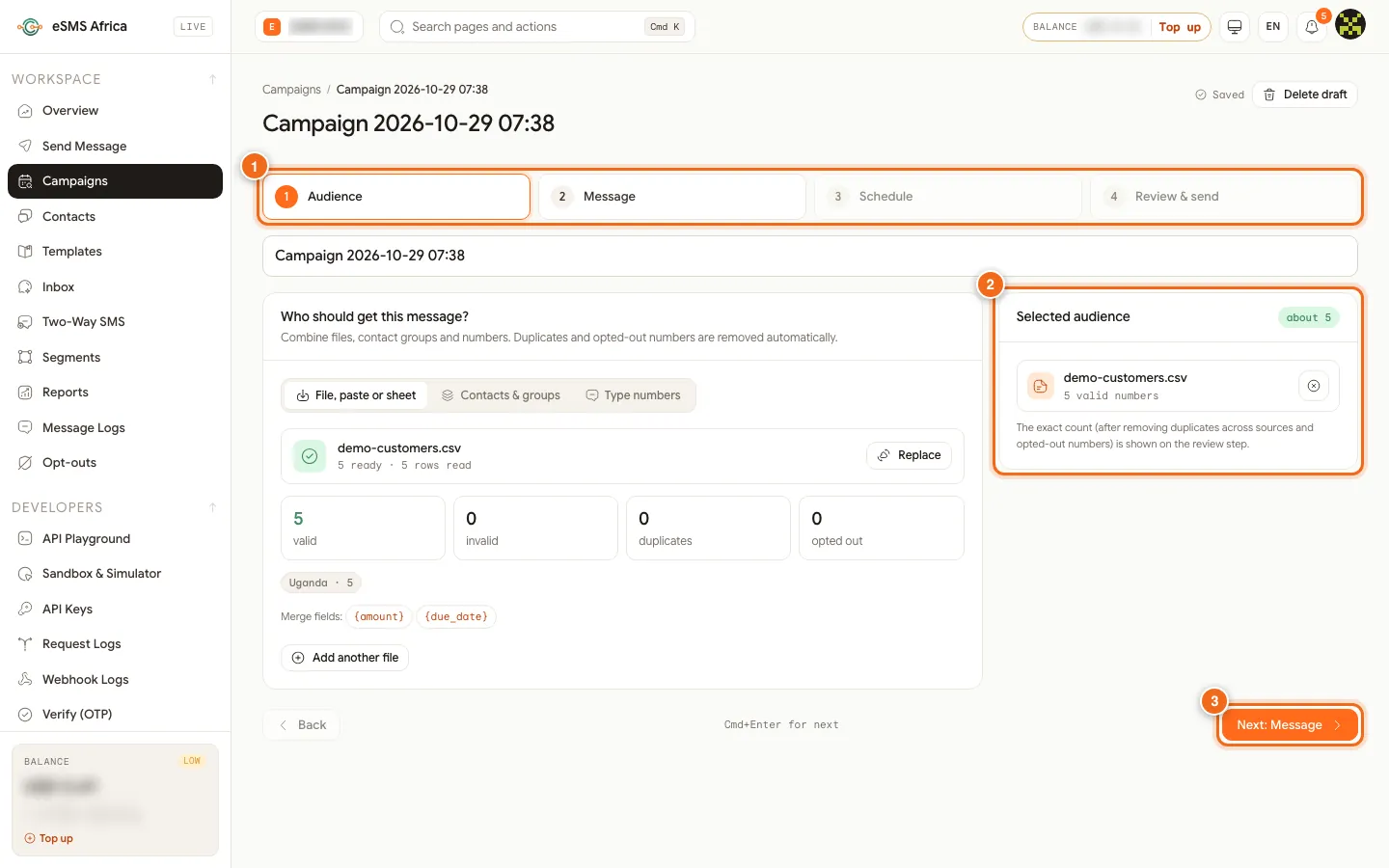
1 The four steps, 2 Selected audience, 3 Next: Message. Write the message
Choose the message type: Transactional (alerts, reminders, codes, receipts; sent at any hour) or Promotional (offers and invites; adds an opt-out line and respects quiet hours). Type your text, insert merge fields, pick the Sender ID and keep Use the country default where my sender ID isn't approved ticked if you want those countries to still receive it. Tick Track link clicks to see who clicked your links. Templates loads saved wording.
Choose when to send
On Schedule, pick Send now, Schedule or Repeat, and set Delivery controls if you want to spread the send out. Click Next: Review & send.
Review the cost
The top cards show Recipients, Segments, Estimated cost and Balance after. Cost by country (1) lists sender, recipients, segments, price per segment and cost. Longest message shows the longest real text. Rows that cannot be sent are listed as not sent (never charged).
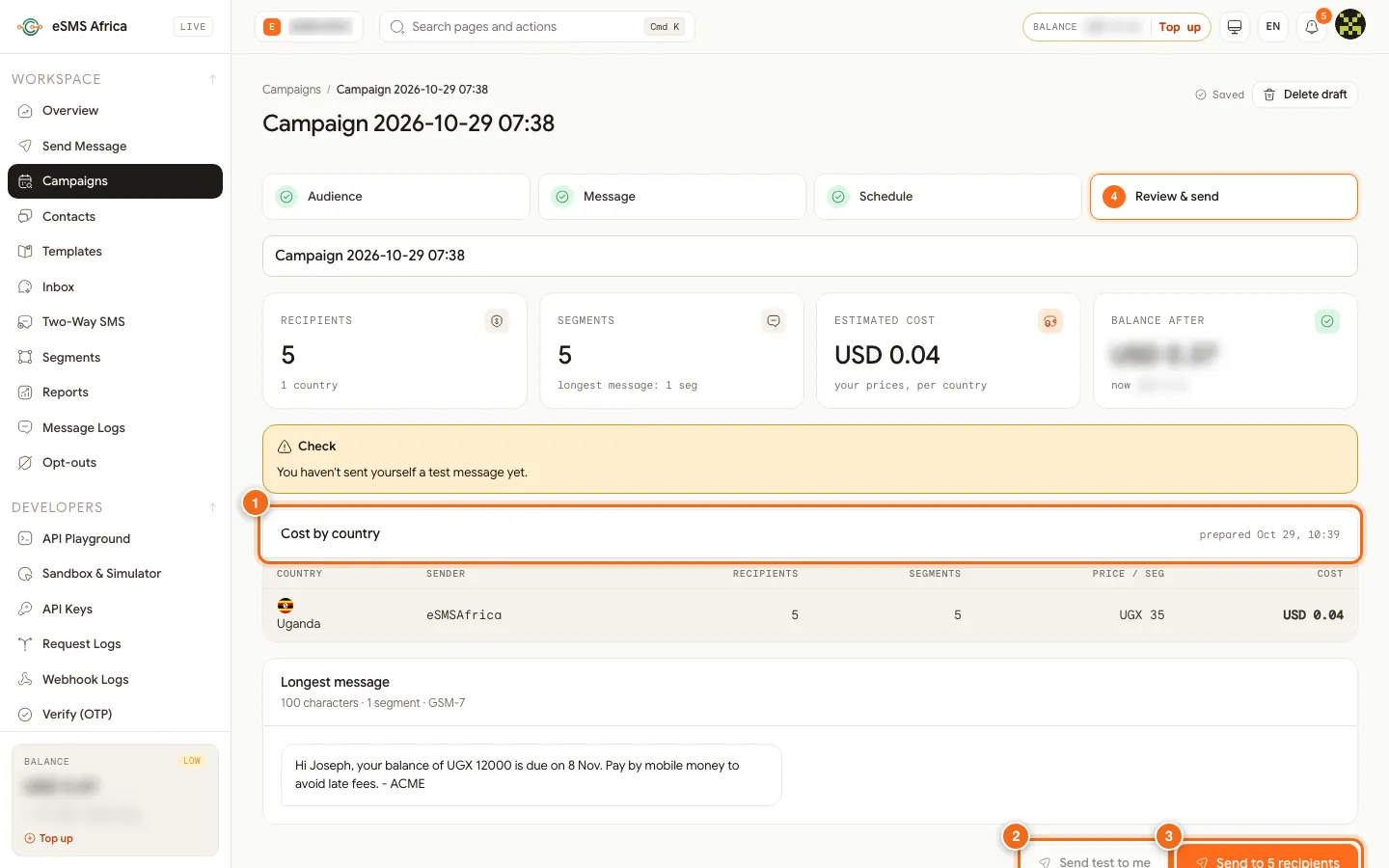
1 Cost by country, 2 Send test to me, 3 Send to 5 recipients. Send a test to yourself
Click Send test to me (2). It goes to your own verified phone. Check the wording and the sender name on the handset.
Launch
Click the main button (3). Its label follows your choices: Send to N recipients, Schedule for a date, Start repeating, or Submit for approval when your workspace needs sign-off. Confirm in the dialog.
Follow progress
The campaign page shows a progress bar, with Pause and Cancel while it sends. When it finishes you get a report with delivered, failed and spent, and you can export recipients as CSV or Excel.
Common errors and how to fix them
| What you see | What it means | How to fix it |
|---|---|---|
| Fix before sending | The review step found a blocking problem, such as no recipients or a missing field. | Click Fix next to the problem to jump to the right step. |
| You haven't sent yourself a test message yet | A reminder, not an error. | Click Send test to me, or carry on if you are sure. |
| Verify your phone in your profile to receive tests | Your profile phone is not verified. | Verify your phone on your profile, then send the test. |
| sender_not_approved / Sender ID not approved there | Your sender ID is not approved in some countries. | Tick Use the country default where my sender ID isn't approved. |
| Paused: balance too low | insufficient_balance during sending. | Top up, then press Resume. Nobody gets a message twice. |
| Launch failed | The campaign could not start. | Check the problems listed and try again. |
Frequently asked questions
Is my campaign saved if I leave the page?
Yes. Drafts save as you go and appear under the Drafts tab. Use Delete draft to remove one.
Can I stop a campaign once it has started?
Yes. Click Pause or Cancel. Messages not yet sent are cancelled and never charged; messages already handed to networks still deliver.
Can I resend to people whose message failed?
Yes. When a campaign has failed recipients, the campaign page offers to retry them. They are charged again like a new send.
Can I reuse a campaign?
Yes. Open it and click Duplicate to start a copy.
How do I see who clicked my link?
Tick Track link clicks on the Message step. Each recipient gets their own short link, so the report shows clicks per person.
Related guides
Ready? Create a free eSMS account and launch your first SMS campaign.