An SMS campaign report shows, for one campaign, how many people it reached, how many messages were delivered or failed and why, what it cost and the status of every single recipient. Open Campaigns, click the campaign name, then use the CSV or Excel buttons in the Recipients section to download the list.
Last reviewed: 29 October 2026
How to read an SMS campaign report
Open the campaign
In the left menu, click Campaigns. Use the status tabs (All, Drafts, Needs approval, Scheduled, Sending, Completed, Cancelled) to narrow the list, then click the campaign name. The report refreshes by itself while the campaign is sending.
Read the headline cards
The cards at the top give you the summary. Recipients is everyone in the audience, with how many were sent. Delivered is confirmed on the handset, with the delivery rate (or "waiting for reports"). Failed is messages that did not get through, with how many are still awaiting a report. Spent is what the campaign actually cost, next to the estimate made before sending; refunded messages are taken off. Time to deliver is the median time to delivery, plus p90 (nine in ten were faster than this).
If you turned on Track link clicks, a Link clicks card shows clicks, people who clicked and the click rate.
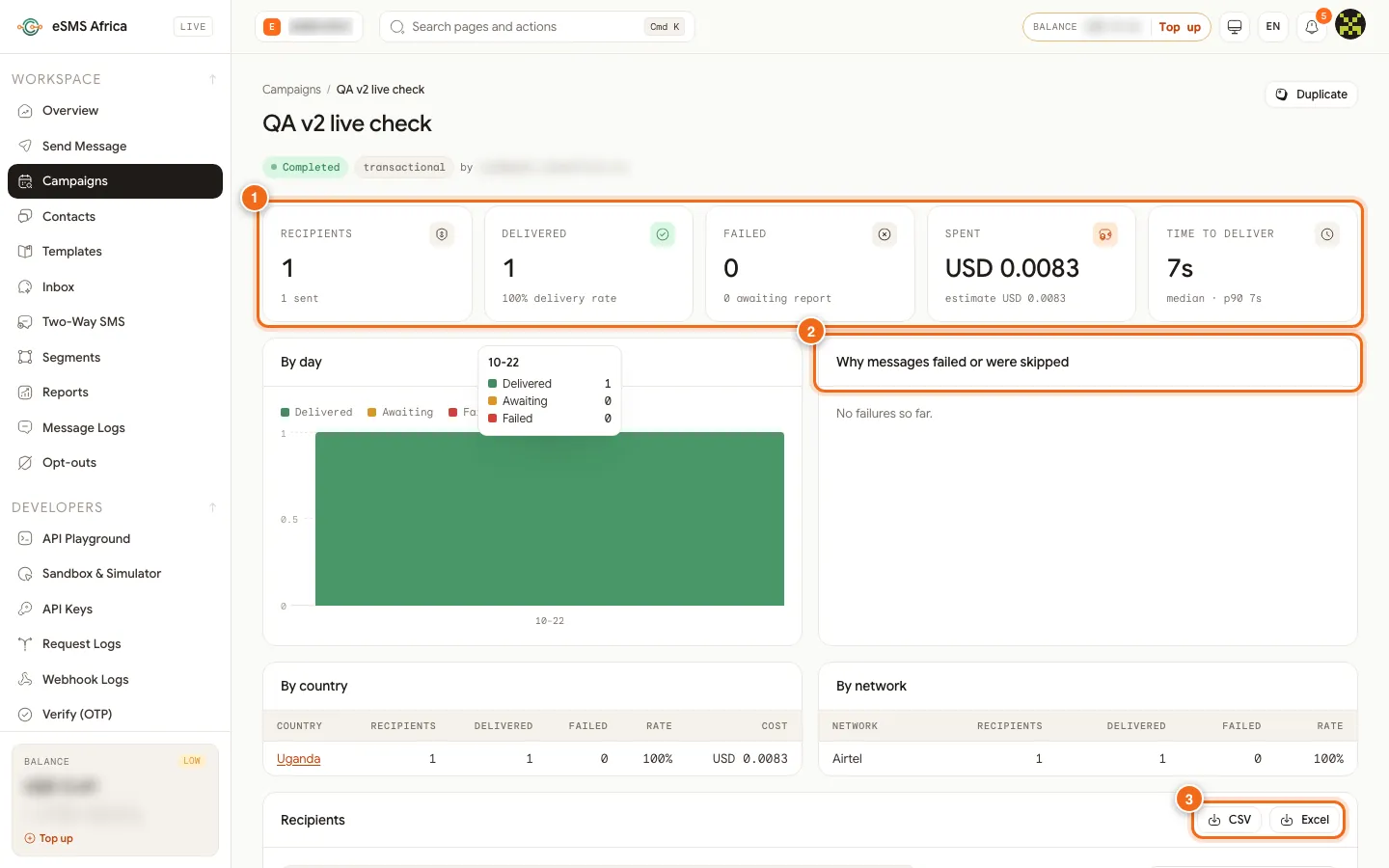
1 Recipients, Delivered, Failed, Spent and Time to deliver cards, 2 Why messages failed or were skipped, 3 Recipients export to CSV or Excel. Check why messages failed
The Why messages failed or were skipped panel groups failures by reason, in plain words, with a count for each. Typical reasons are "Not delivered by the network - the phone was off, out of coverage, or the SIM is inactive", "Rejected by the network (often a sender ID or content filter on that network)" and "Invalid destination number". The By day chart, By country table and By network table show where problems are concentrated. Click a country name to filter the recipient list to that country.
Filter the recipient list
Scroll to Recipients. Use the tabs All, Delivered, Awaiting report, Confirming, Failed, Pending, Skipped and Cancelled, or type in the Phone or name search box. Each row shows the number, the personalised message, its status with the reason, the country and network, the cost and when it was delivered.
Export the recipients
Click CSV or Excel at the top of the Recipients section. The file follows the status tab you have open, so select Failed first if you only want the numbers that did not get through, for example to call them or fix their numbers.
Act on the results
When a finished, cancelled or paused campaign has failures, a Retry N failed button sends again to those recipients only. They are charged again like a new send. Duplicate copies the campaign into a new draft so you can fix the wording or audience and send it again. For a repeating campaign, a Runs table lists each run with its own report.
Common errors and how to fix them
| What you see | What it means | How to fix it |
|---|---|---|
| Many recipients stay on Awaiting report | The network accepted the message but has not returned a final delivery report yet. Some networks report late, and a few do not report every message. | Wait and reopen the report later. Awaiting report is not a failure. |
| Recipients show Confirming | We are confirming with the network whether the message went out. The charge is refunded automatically if it was not sent. | Wait. It usually settles within about 10 minutes and then shows as sent or failed. |
| Banner "Paused: balance too low" | Each batch is charged as it sends and the balance ran out. | Click Top up, then Resume. It continues where it stopped and nobody gets a message twice. |
| The export file is empty | The status tab you had open has no recipients. | Select All (or another tab with a count) and export again. |
| "No messages sent yet." in By day | The campaign is scheduled or waiting for approval. | Check the banner at the top of the report for the scheduled time or approval status. |
Frequently asked questions
What is the difference between Failed and Skipped?
Failed messages were attempted and did not reach the phone. Skipped recipients were never sent a message, for example because the number was invalid, a duplicate or on your opt-out list.
Does the Spent figure include refunds?
Yes. Spent is what the campaign actually cost. Messages that were refunded, for example because they were rejected when handed to the network, are taken off.
Can I export only the failed numbers?
Yes. Select the Failed tab in the Recipients section, then click CSV or Excel. The export follows the selected tab.
Is retrying failed recipients free?
No. Retry N failed sends a fresh message to each failed recipient, and each one is charged like a new send.
Where do I see all messages, not just one campaign?
Use Message Logs for every message and Reports for totals by day, country, campaign and API key.
Related guides
Ready? Create a free eSMS account, send your first campaign and watch its report fill in as delivery reports arrive.