To top up SMS balance on eSMS Africa, open the top-up page, choose an amount in US dollars (minimum USD 20), pick mobile money, Mukuru or crypto, and follow the payment steps. Mobile money is credited in seconds; Mukuru and crypto are credited once our team confirms the payment, usually within a few hours. Bank cards are not accepted.
Last reviewed: 29 October 2026
How to top up SMS balance
Open the top-up page
Click Top up on the balance card in the dashboard, or go to auth.esmsafrica.io/topup. The page is called Fund your account.
Check your country
The top row (1) says, for example, Paying from Uganda - From your profile. Click Change if you are paying from another country; the payment options and local currency follow the country you choose.
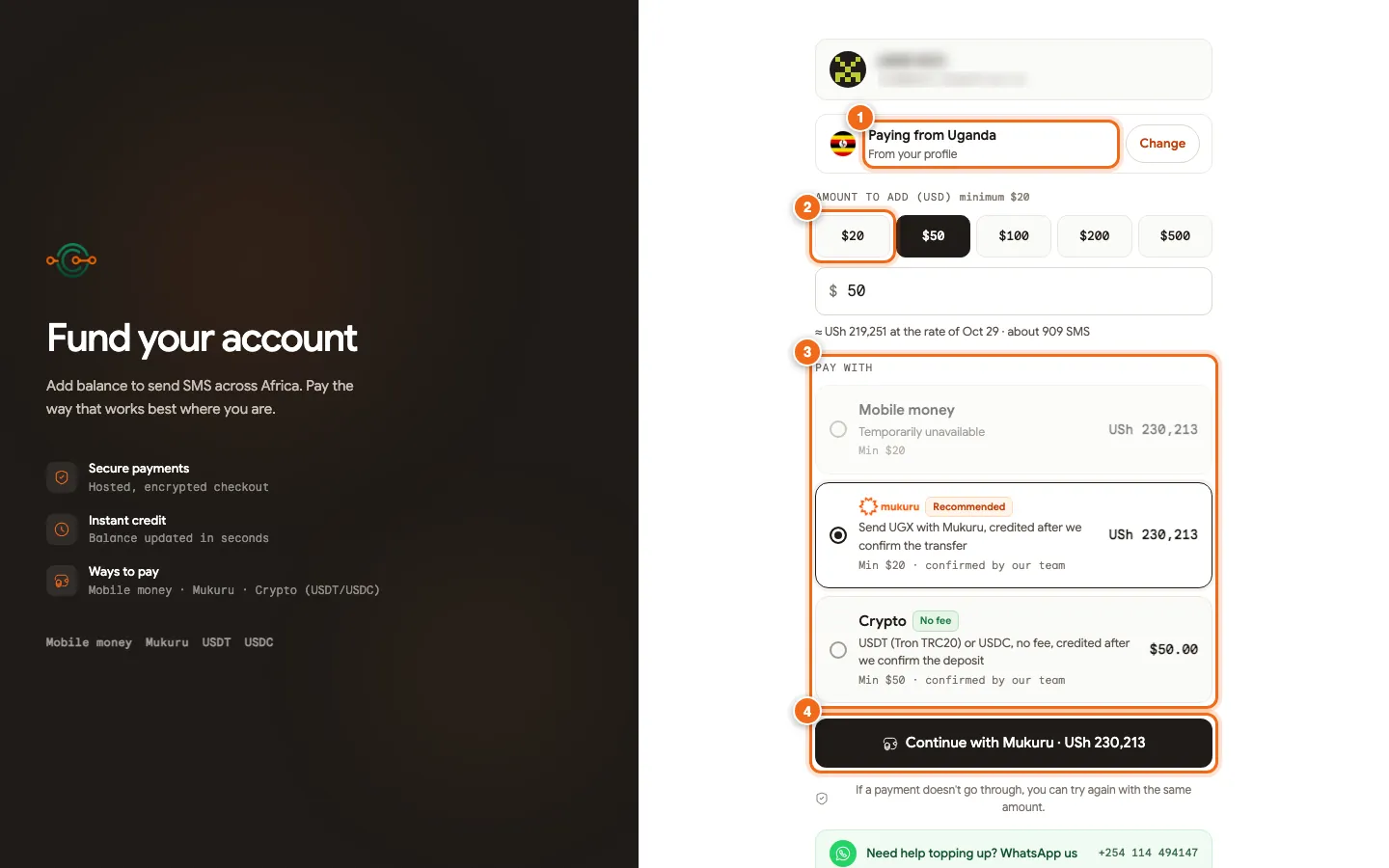
1 Paying from (with Change), 2 Amount to add in USD, 3 Pay with: Mobile money, Mukuru or Crypto, 4 The pay button, labelled for the chosen method. Choose an amount
Under Amount to add (USD) (2), click a preset ($20, $50, $100, $200 or $500) or type your own amount. The minimum is $20. Under the box you see the local currency equivalent at today's rate and about how many SMS it buys.
Pick how to pay
Under Pay with (3), each method shows its minimum and the total you will pay. For mobile money and Mukuru a 5% service provider fee is already included in the total shown; crypto has No fee and a USD 50 minimum. If a method says Temporarily unavailable, choose another method or try again later. One method may carry a Recommended tag.
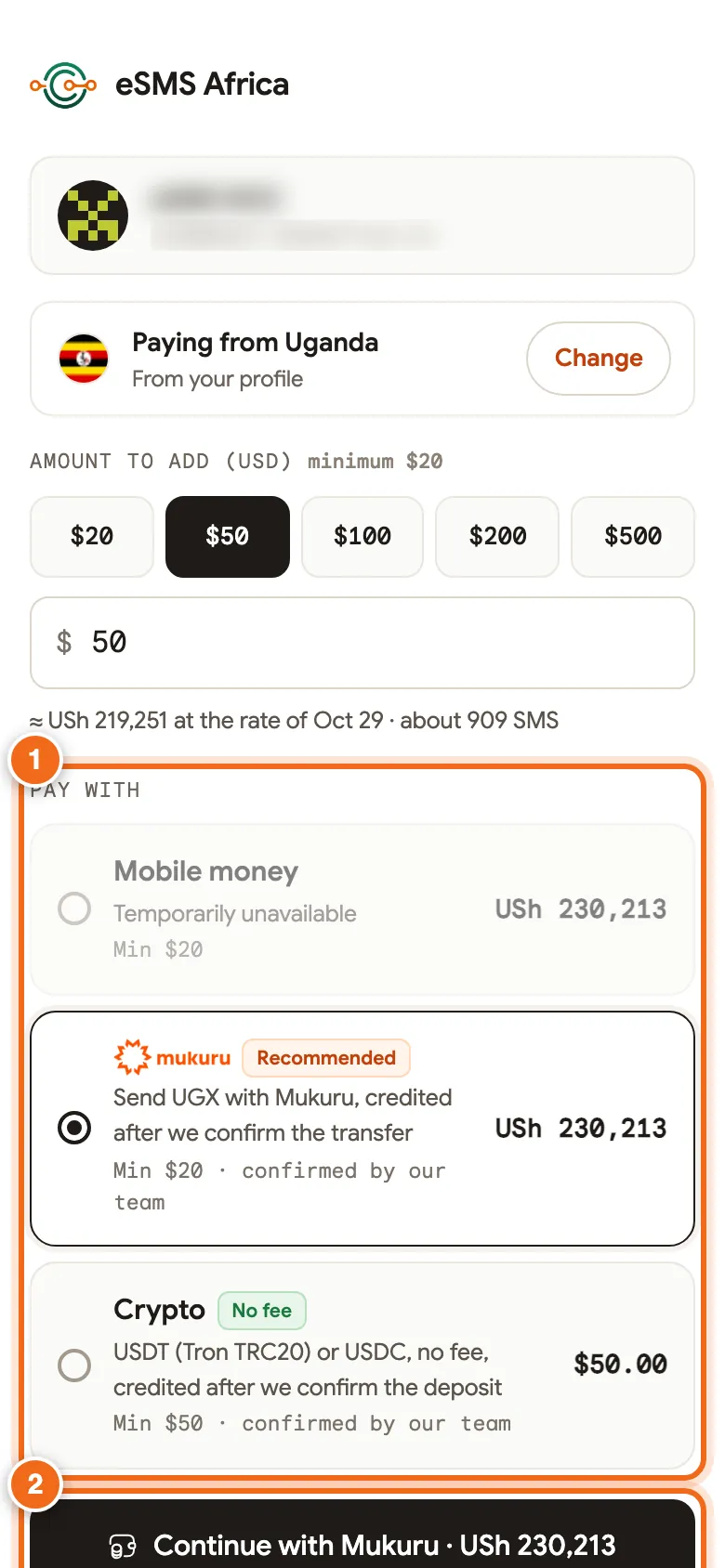
1 Pay with options on a phone, 2 The continue or pay button. Pay by mobile money
Select Mobile money. The button (4) reads Pay plus the amount and by mobile money. Click it to open the secure checkout and approve the payment on your phone. You return to a page that says Payment received with the amount, reference and a View receipt link, or Confirming your payment while we wait for the network; that page updates by itself.
Pay with Mukuru
Select Mukuru and click Continue with Mukuru. The next page, Send ... with Mukuru, lists the Recipient, Mobile number, Receive method and Amount to send, each with a Copy button. Send at least that amount in the Mukuru app or at an agent so it arrives in full after Mukuru's fees. Then fill in Mukuru reference / transaction number (each reference can be submitted once) and Amount you sent, optionally add a Receipt screenshot (PNG, JPEG or WEBP) and a note, and click I've sent it, submit reference. You see Transfer details received; we credit you and email you once the money reaches us, usually within a few hours during business hours.
Pay with crypto
Select Crypto and click Continue with crypto. Choose the USDT or USDC tab; the page shows the Asset, Network, the amount to Send exactly and the Deposit address, each with Copy. You can also open the QR code (Scan to pay - view QR for USDT). After sending, paste the Transaction hash (TxID) from your wallet or exchange history and click I've sent it, submit proof. The page says Proof received, and we credit you and email you once the deposit is confirmed, usually within a few hours.
Common errors and how to fix them
| What you see | What it means | How to fix it |
|---|---|---|
| Temporarily unavailable | That payment method is not working right now. | Pick another method or try again later. |
| The minimum for crypto is $50. (or $20 for other methods) | The amount is below the method's minimum. | Raise the amount or choose another method. |
| Your payment didn't go through | The mobile money payment was not completed. | "You were not charged." Try again with the same amount, or another method. |
| Enter the Mukuru reference or transaction number. | The reference box is empty. | Copy the reference from the Mukuru app or your slip. |
| Paste the transaction hash from your wallet or exchange. | The TxID box is empty. | Find the hash in your withdrawal history and paste it. |
| We could not load the payment options. | The page could not reach our servers. | Check your connection and click Retry. |
Frequently asked questions
Can I pay by card?
No. Bank cards are not accepted. Use mobile money, Mukuru or crypto.
What is the minimum top-up?
USD 20 for mobile money and Mukuru, and USD 50 for crypto.
Is there a fee?
Mobile money and Mukuru include a 5% service provider fee in the total shown before you pay. Crypto has no fee.
How fast is my balance updated?
Mobile money usually updates your balance in seconds. Mukuru and crypto are confirmed by our team, usually within a few hours, and we email you when it is done.
Is automatic top-up available?
Not at the moment. Turn on the Low balance alert so you know when to top up.
Where are my receipts?
On the Payments tab of your profile at auth.esmsafrica.io/profile. Settings, Billing in the dashboard lists top-ups, charges and refunds.
Related guides
Ready? Create a free eSMS account, top up from USD 20 and start sending.