Every message in eSMS has an SMS delivery status that tells you where it is: waiting to send, handed to the network, delivered to the phone, being confirmed, or failed. You see it in Message Logs and in each campaign report. Messages refused when we hand them to the network, and messages we confirm were never sent, are refunded automatically; a message the network accepted but could not deliver keeps its charge.
Last reviewed: 29 October 2026
What each SMS delivery status means
Message Logs has the tabs All, Delivered, Submitted, Scheduled, Dripping, Confirming and Failed. Inside the table the status pill shows the status in lower case, for example delivered or failed.
| Status | What it means |
|---|---|
| Scheduled | Set to send at a later date and time. |
| Dripping | Part of a bulk send that is spread out at a set number of messages per minute. |
| Submitted | Handed to the network. No delivery report has arrived yet. |
| sent | The network has accepted the message and is delivering it. |
| Delivered | The network confirmed it reached the handset. |
| retrying | The network reported a failure and we are sending it again automatically. |
| Confirming | The hand-over to the network was interrupted, so we are confirming with the network whether it went out. Hover over the pill to read: "We're confirming delivery with the network. Charge is refunded automatically if it wasn't sent." |
| Failed | It did not reach the phone. The network may also report undelivered, rejected or expired. |
| cancelled | A scheduled message that was cancelled before it went out. |
How to check the status of a message
Open Message Logs
In the left menu under WORKSPACE, click Message Logs. Pick a status tab to filter the list, or stay on All.
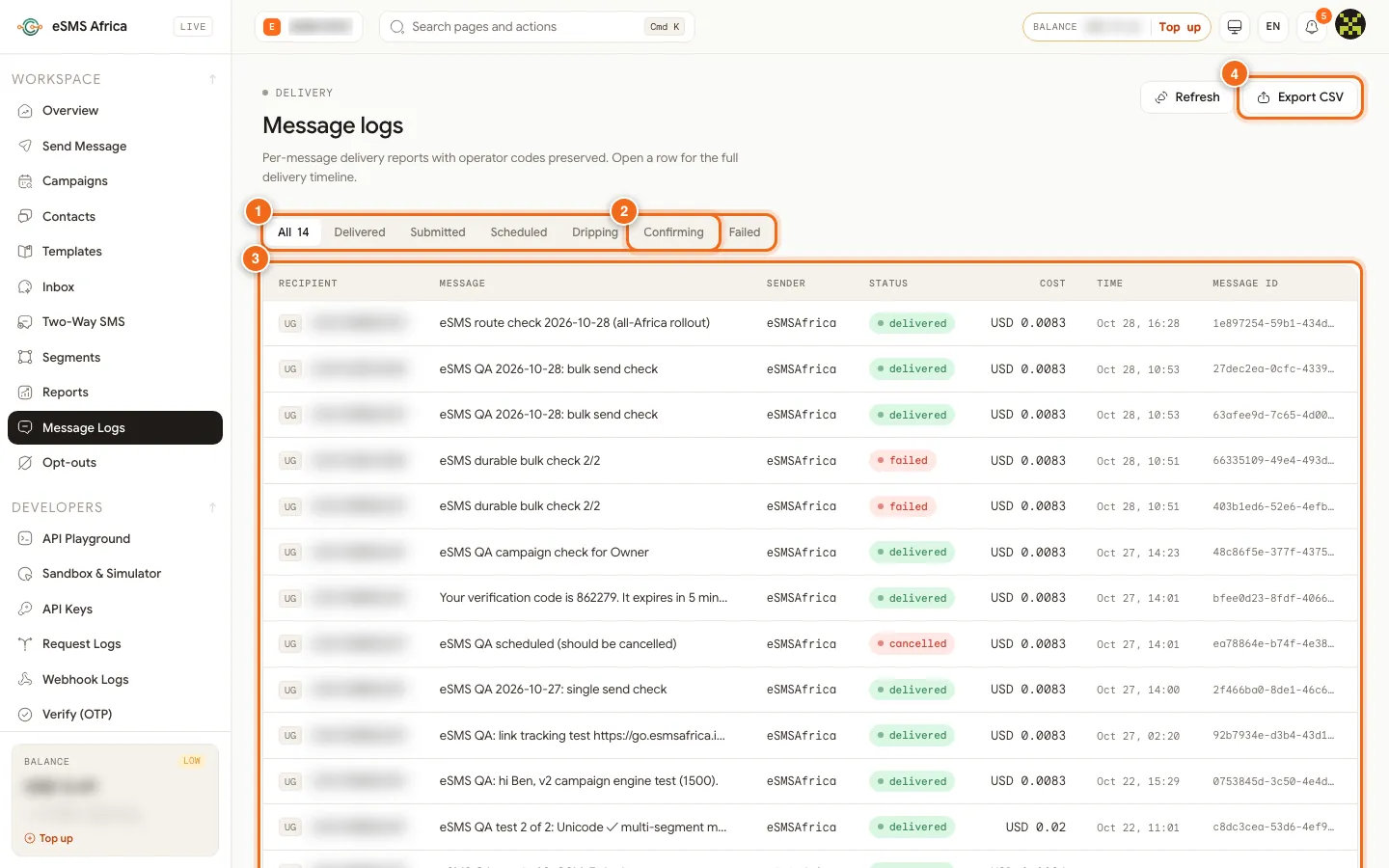
1 Status tabs, 2 the Confirming tab, 3 messages table (Recipient, Message, Sender, Status, Cost, Time, Message ID), 4 Export CSV. Open the message details
Click any row. The Message details panel shows the status, recipient, country, sender, segments, cost, retries, and when it was created and delivered. If the network returned an error, it appears in red at the top.
Read the delivery timeline
The Delivery timeline lists each step with its time, for example accepted, cost charged, submitted, sent and delivered. A refund shows as its own refunded step with the amount, and automatic retries show as retry scheduled.
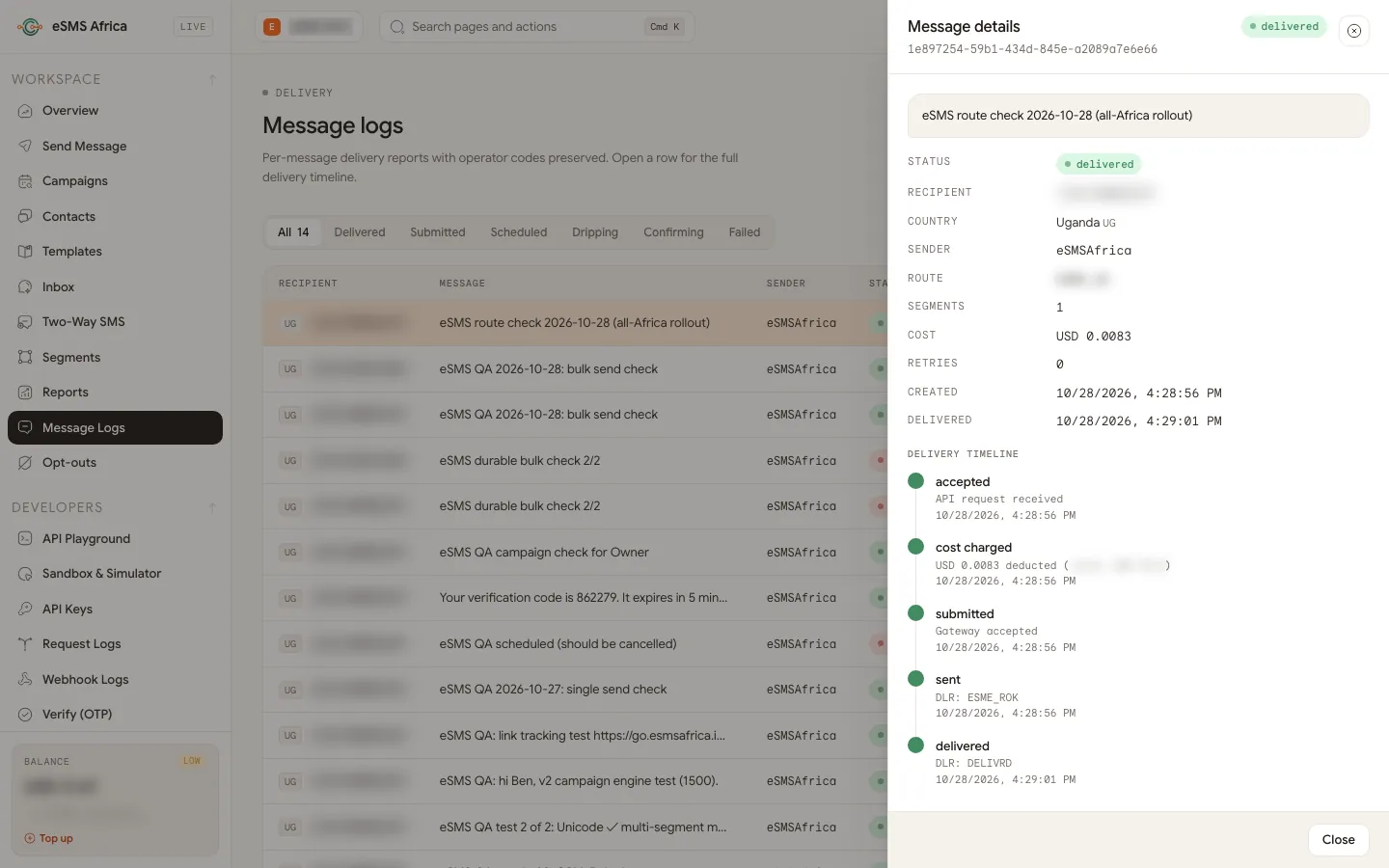
Message details with the delivery timeline: accepted, cost charged, submitted, sent, delivered. Retry a failed message if needed
For a message with status failed, undelivered, rejected or expired, a Retry message button appears at the bottom of the panel. Read the rules on charging below before you use it.
When a failed SMS is refunded
| What happened | Charged? |
|---|---|
| The message was refused when we handed it to the network (for example the route was unavailable). | No. The charge is refunded automatically and a "Refund: ..." line appears under Settings > Billing. |
| The status was Confirming and we confirmed it was never sent. | No. It becomes failed and is refunded once, automatically. |
| The status was Confirming and the network confirms it did go out. | Yes. It changes to sent or delivered like any other message. |
| The network accepted the message but later reported it could not deliver it (phone off, SIM inactive, number unreachable until it expired). | Yes. We retry it automatically up to two times at no extra cost. If it still fails, the charge stays, because the network carried the message. |
| A scheduled message was cancelled before sending. | No. The charge is refunded. |
| Your balance was too low, so it was never sent. | No. |
| Sent with a test key. | No. Test messages are never charged. |
When you click Retry message: if the original charge was refunded, the retry is charged like a new send. A paid message can be re-sent without a new charge only while it still has retries left (two per message, and automatic retries use them up). After that, each retry is charged. In a campaign report, Retry N failed always charges each message again.
Common errors and how to fix them
| What you see | What it means | How to fix it |
|---|---|---|
| "We're still confirming this message with the network. Try again once it shows sent or failed." | You tried to retry a message in Confirming. | Wait for it to settle, usually within about 10 minutes, then retry only if it shows failed. |
| "Only failed, undelivered, rejected or expired messages can be retried." | The message is still in progress or was delivered. | Nothing to do. Check the timeline for its progress. |
| "Insufficient balance to retry this message." | The retry needs a new charge and your balance is too low. | Top up, then retry. |
| "Rejected by the network (often a sender ID or content filter on that network)" | The network blocked the message, usually because the sender ID is not registered on that network or the wording looked like spam. | Check the sender ID is approved for that country, or send with your default sender, and review the wording. |
| "Not delivered by the network - the phone was off, out of coverage, or the SIM is inactive" | The network accepted it but could not reach the phone. | Confirm the number with the customer. Retrying straight away rarely helps if the phone is off. |
Frequently asked questions
What does Confirming mean?
Confirming means the hand-over to the network was interrupted and we are checking with the network whether the message went out. If it was not sent, the charge is refunded automatically.
How long does Confirming last?
It usually settles within about 10 minutes, as sent, delivered or failed and refunded. In rare cases it takes longer and our team settles it.
Am I charged for failed messages?
Not when the message was refused at hand-over or never sent. You are charged when the network accepted it and later could not deliver it, after up to two free automatic retries.
Why does a message stay at Submitted or sent?
The network has not sent a final delivery report. Some networks report late and a few do not report every message.
Where can I see refunds?
Each refund appears in the message timeline as refunded and under Settings > Billing in Recent charges with the type Sms_refund.
Related guides
Ready? Create a free eSMS account and follow every message from accepted to delivered in Message Logs.