KYC onboarding verifies your business once so networks can register your sender IDs faster. In Onboarding & KYC you add your details, upload documents and sign the service order form online, confirmed with a 6-digit code we email you. It takes about 5 minutes and is optional today, but it speeds up sender ID approval.
Last reviewed: 29 October 2026
How to complete KYC onboarding
Open Onboarding & KYC
In the left menu under ACCOUNT, click Onboarding & KYC, or click Start onboarding on the Overview or Sender IDs banner. Progress is saved automatically, so you can stop and come back.
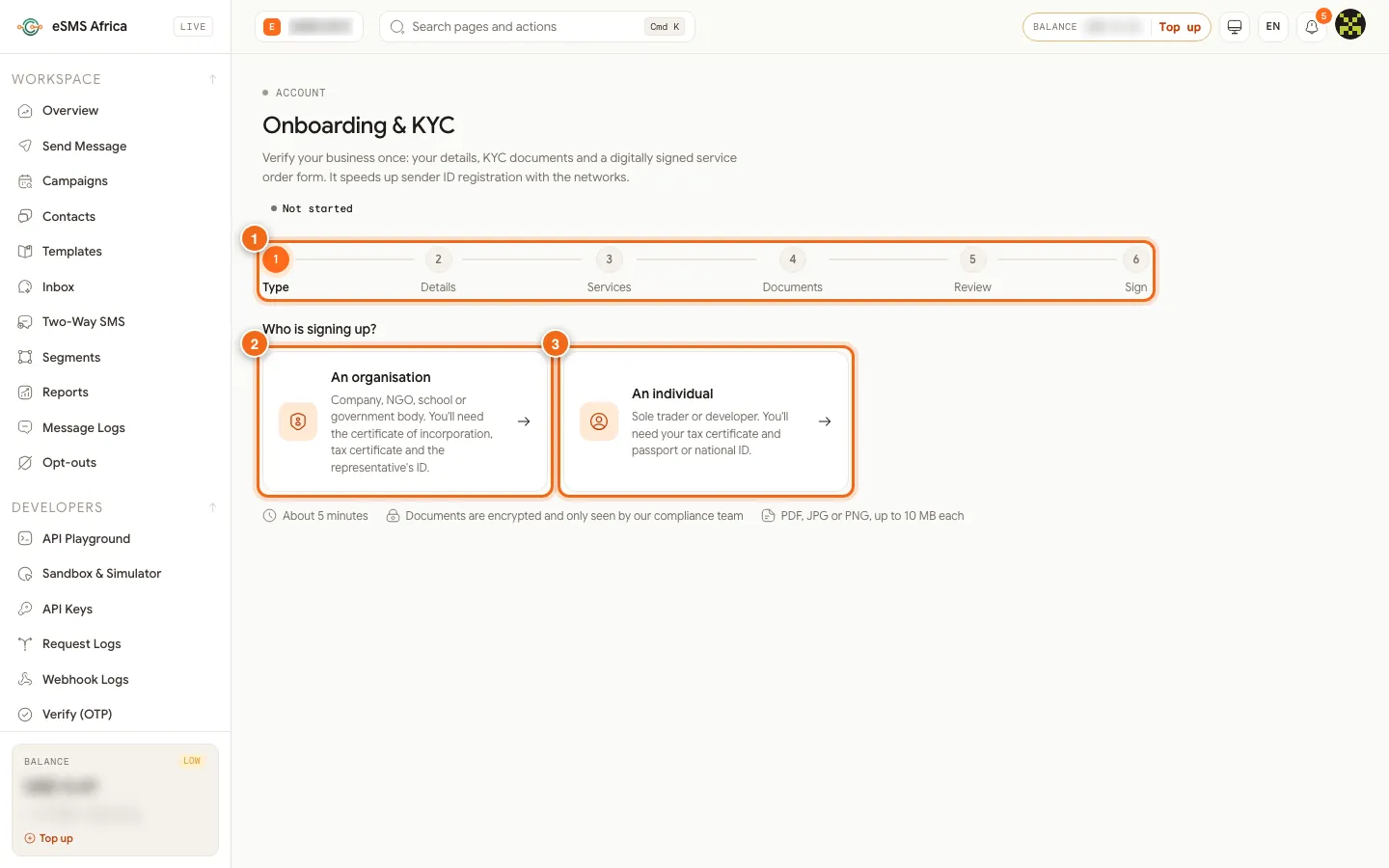
1 The six steps: Type, Details, Services, Documents, Review, Sign, 2 An organisation, 3 An individual. Type: choose who is signing up
Under Who is signing up?, click An organisation (2) or An individual (3).
Details: enter your information
Fill in the organisation and representative details as they appear on your official documents. Fields marked * are required. Click Continue.
Services: say what you will send
Tick the Products, Destination countries and Traffic types, choose your Expected monthly volume, and add Sender IDs you want (optional). In How will you use the service? say who receives the messages, why they agreed to receive them and what the messages say. Clear answers get sender IDs approved faster.
Documents: upload your files
Click Upload next to each required document. Use View to check a file and Replace to change it. Then click Review the form.
Review the service order form
You see the exact PDF you will sign, with the eSMS pricing schedule for your countries from today's rates. Open or download the draft, then click Continue to sign.
Sign and confirm by email
Type the Signer's full name (and a title if you like). Sign by drawing in the box or by typing your name. Tick both boxes (terms and electronic signature). Under Confirm it's you, click Email me a code, type the 6-digit code (it expires in 10 minutes) and click Confirm. Then click Sign service order form.
After you sign
The status changes to Signed - under review. You can Download signed PDF; it carries a QR code that opens a public Verification page, so anyone can check the document is genuine. Our compliance team then approves it, asks for changes or rejects it, and the page shows the result. Need to fix something before review? Click Withdraw and edit; the form goes back to draft and you sign again.
Common errors and how to fix them
| What you see | What it means | How to fix it |
|---|---|---|
| Only PDF, JPG and PNG files are accepted. | The file type is not allowed. | Save or scan the document as PDF, JPG or PNG. |
| This file is X MB. The limit is 10 MB. | The file is too large. | Compress the PDF or take a smaller photo. |
| Please complete: ... | Required fields are empty. | Fill in the fields listed, then continue. |
| Code not accepted | The emailed code is wrong or has expired. | Click Resend and enter the new code within 10 minutes. |
| Tick both boxes | The terms or electronic signature box is not ticked. | Tick both, then click Sign service order form. |
| Changes requested | Our compliance team needs something changed. | Open the page, read the note, edit and sign again. |
Frequently asked questions
Is onboarding required to send SMS?
No. It is currently optional. It speeds up sender ID registration because networks ask for these documents.
How long does onboarding take?
About 5 minutes if your documents are ready. Progress is saved automatically.
Who can see my documents?
Documents are stored encrypted and only seen by our compliance team.
How do I prove the signed form is real?
The signed PDF has a QR code that opens a public verification page for that document.
Can I change my details after signing?
Yes. Click Withdraw and edit; the form returns to draft and you review and sign it again.
Related guides
Ready? Create a free eSMS account and verify your business once for every sender ID.